
In ATB Invoicing, how you remove or cancel a document depends on whether it has been shared with a customer. This system ensures clean bookkeeping and maintains a clear audit trail for your business records.
Key difference: Delete vs. void
- Delete (Drafts only): Permanently removes the record from your account. Deleting is only available for Drafts (quotes or invoices that have never been sent).
- Void (Sent, Viewed, Scheduled, or Overdue): Cancels an active document while preserving the record for accounting and audit purposes.
When to delete a draft
Delete a draft document if you created it by mistake, decided not to issue it, or abandoned work before sharing it with a client. Because the draft was never sent, deleting it leaves no trace and does not affect your accounting records.
When to void a sent document
Voiding is the standard accounting practice to cancel an invoice or quote that has already been sent to a customer. Common scenarios include:
- Customer disputes a charge and you agree to cancel the document.
- You need to correct a locked field (such as line items, tax settings, issue date, or invoice number) after sending.
- You have accidentally sent the document to the wrong contact information.
Step-by-step guidance
Deleting a draft
- Open the draft invoice or quote.
- Click the three dots (...) menu in the top right header.
- Select Delete invoice or Delete quote.
- Confirm deletion. The draft will be permanently removed.
Voiding a sent document
- Open the sent or active invoice or quote.
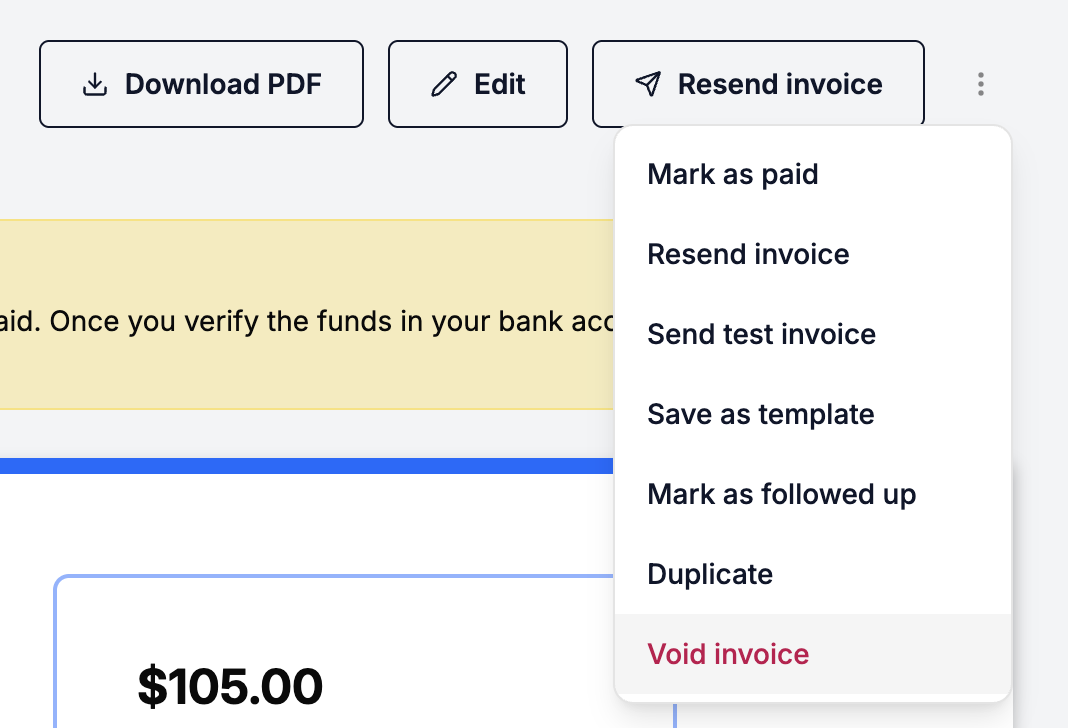
- Click the three dots (...) menu in the top right header.
- Select Void invoice or Void quote.
- In the confirmation dialog, again click Void invoice or Void quote.
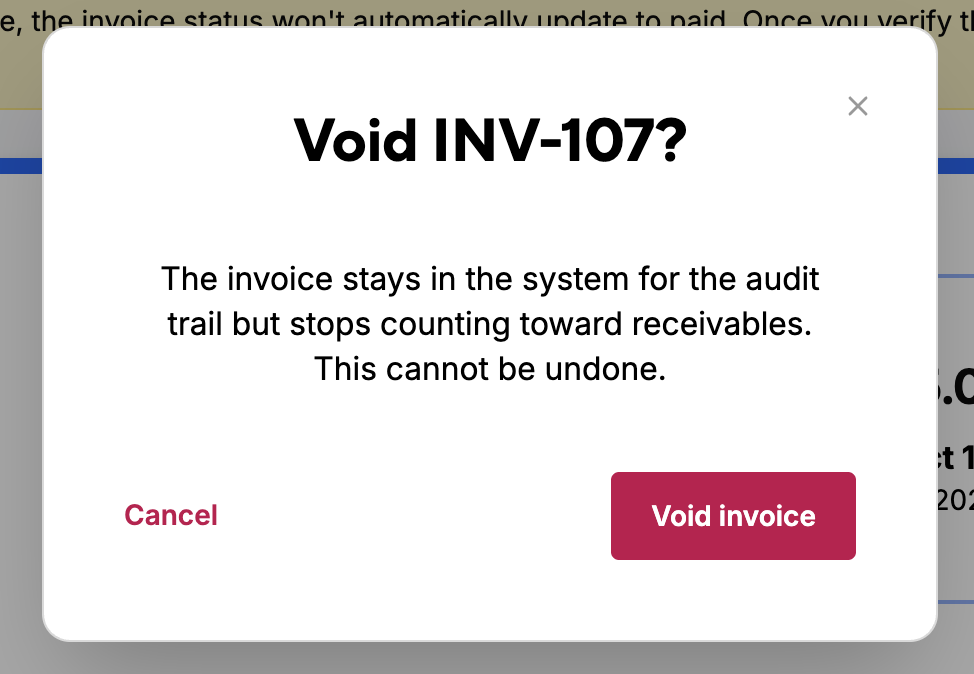
Voiding is permanent: Voiding cannot be undone. You cannot un-void an invoice or quote once confirmed. If you void a document by mistake, you must create a new draft to replace it.
What happens after voiding
- Status update: The document status changes permanently to Void.
- Financial calculations: The amount is automatically removed from Outstanding and Overdue balances on your dashboard and customer profiles.
- Audit record: The document remains visible in your main list by using the Void status filter, and stays recorded on the customer profile for tracking history.
- Payment link cancellation: Any active payment links or pending Interac requests attached to the document are immediately cancelled. If a customer attempts to open a voided link, they will see a notification stating the request has been cancelled.

