
Tags are short labels you attach to customers to categorize and group them—such as local, wholesale, or recurring. Once assigned, you can filter your customer directory by tag to focus on specific subsets of your client base.
How tags work
Tags are managed centrally across your entire business:
- You can create and delete tags from the central Manage tags page (found on the Customers tab) or create new tags directly from any customer profile.
- Any tag added centrally or created directly from a customer profile automatically syncs with your organization’s central list and instantly appears in the dropdown on every customer profile.
- You can assign multiple tags to a single customer.
Adding and managing central tags
To manage your organization's master tag list:
- Go to Customers from the top navigation bar.
- Click Manage tags in the top right corner.
- To add a tag: Type the tag name into the input field and save it to add it to your organization's central list.
- To delete a tag: Find the tag on the list and click the garbage bin icon to remove it from your organization's available options.
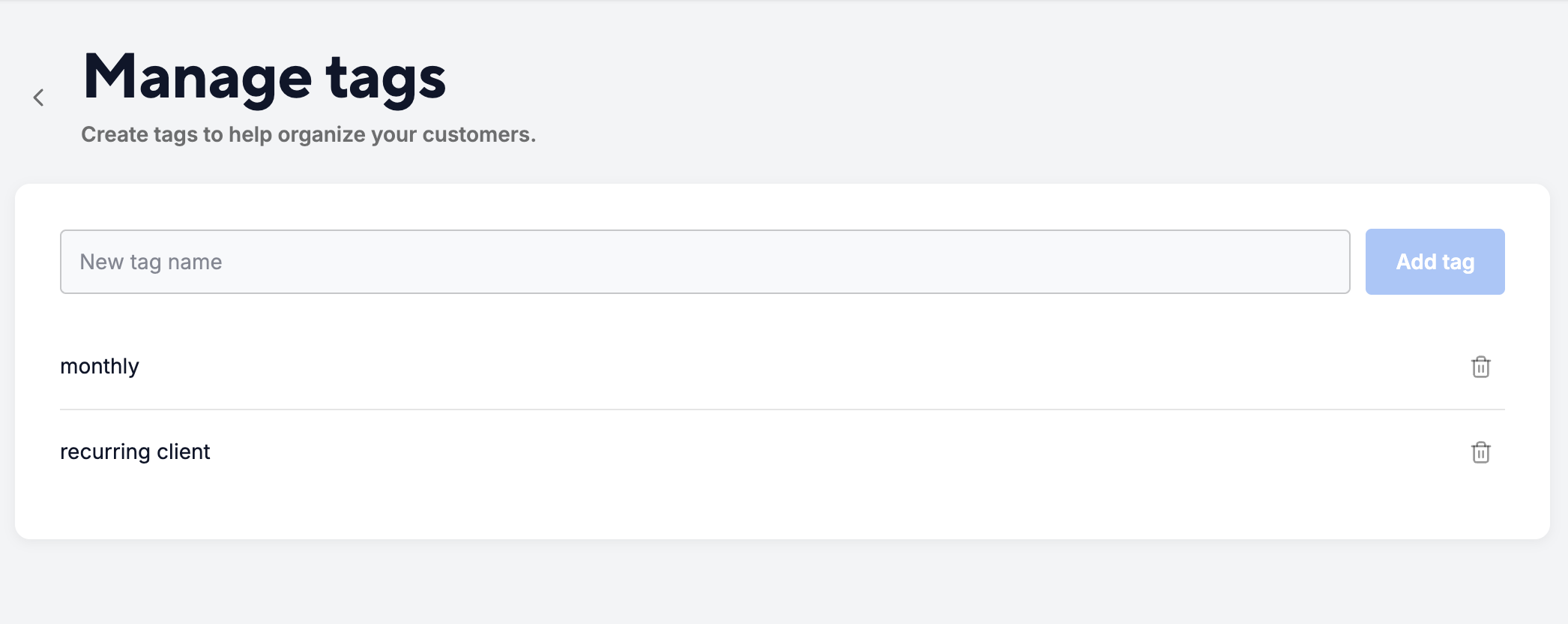
Assigning and creating tags from a customer profile
You can assign existing tags or create new ones directly while viewing a customer profile:
- Open the Customers page and select a client profile.
- Under Customer Details, click the edit icon next to Tags.
- Click the tag search box to view a dropdown of pre-created tags, or start typing to search for existing tags.
- Select a tag to apply it to the customer profile.
- To create a new tag: If the tag you need doesn't exist, type the new tag name and select the "Add new tag" prompt at the bottom of the list. Tags created directly from a customer profile automatically sync and display under Manage tags on your customer directory.
- To remove a tag from a customer: Click the X on the tag chip inside the profile. (Note: Removing a tag from a customer profile does not delete it from your organization's master tag list.)
Best practices
- Keep tags concise (one or two words).
- Use consistent naming and casing
- Periodically clean up outdated tags from the Manage tags screen to keep your dropdown choices relevant for all team members.

