
The Customers page is your central directory for managing clients. This article covers how to search, filter, customize your view, and read customer statuses across your account.
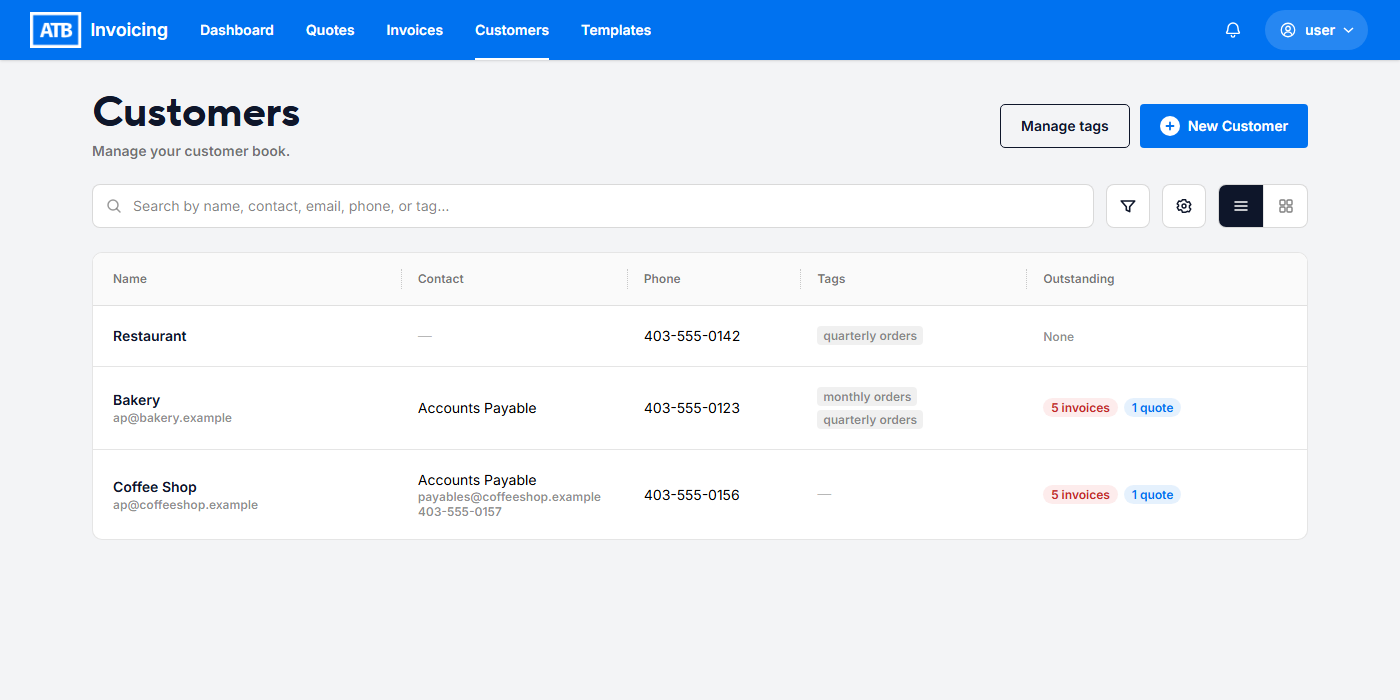
Search bar
Use the central search bar above the list to quickly find clients. The search matches text across:
- Customer legal name
- Email address
- Contact name
- Phone number
- Assigned tags
Filtering options
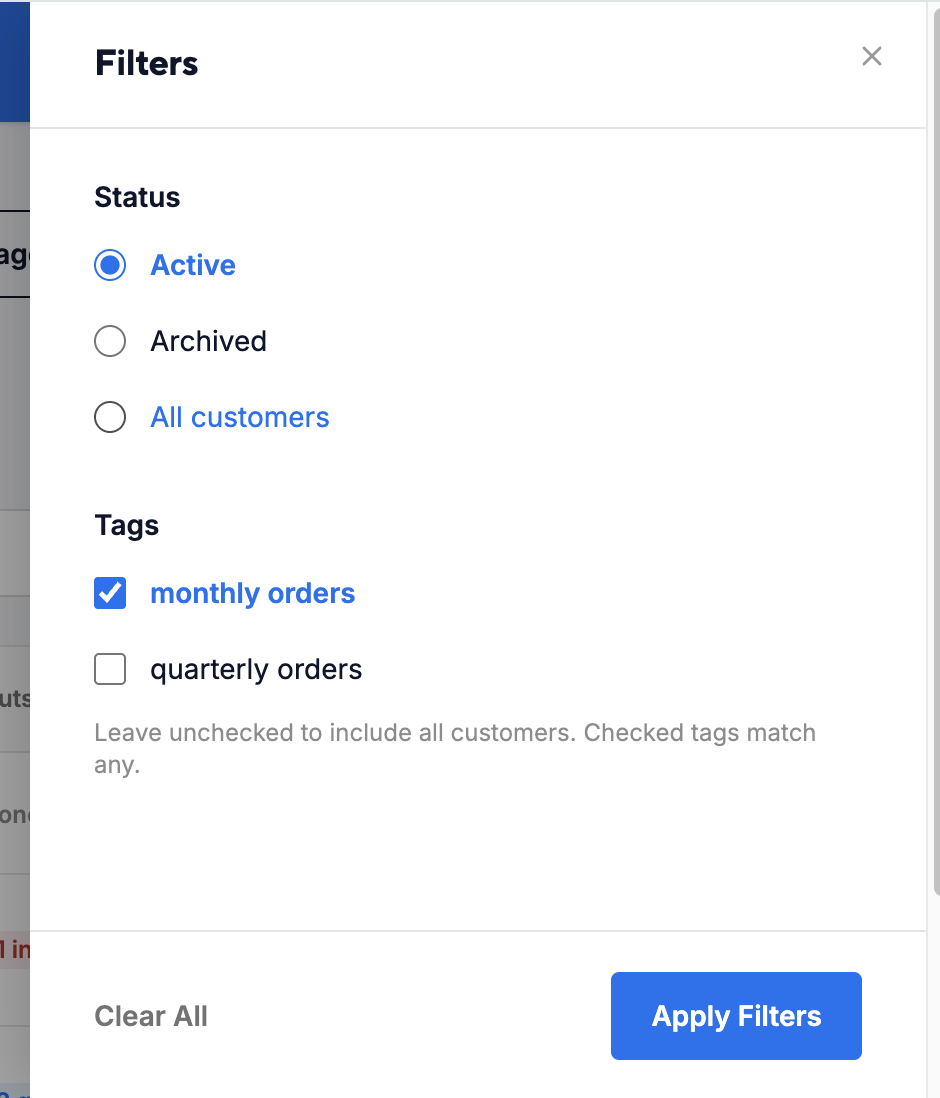
Click the Filter icon (funnel button) to open the Filters side panel:
- Status: Select Active, Archived, or All customers.
- Tags: Check one or multiple tag boxes. Checked tags display any matching customer.
- Click Apply Filters to update your list or Clear All to reset.
Views and table settings
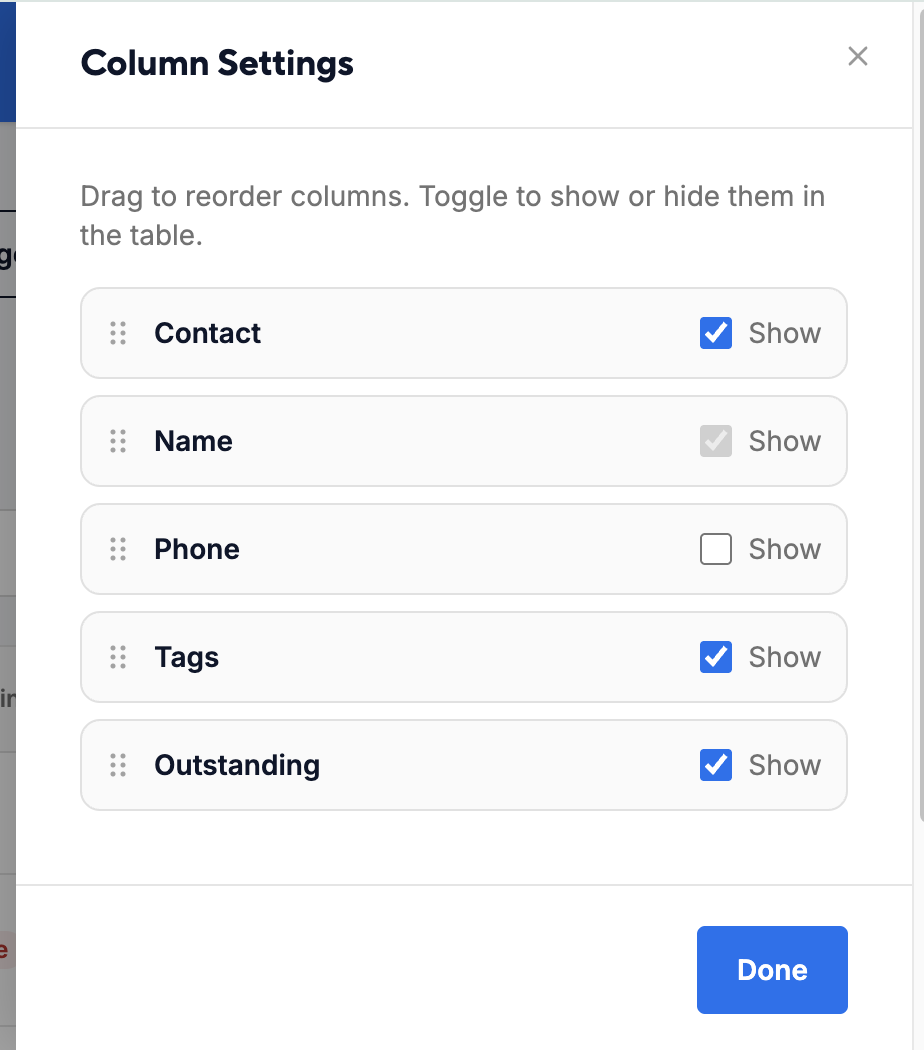
To the right of the search bar, use the control icons to adjust column settings:
- Click the Gear icon to open the Column Settings panel.
- Show/Hide Columns: Toggle checkboxes to display or hide Contact, Phone, Tags, or Outstanding. (Note: Legal Name is mandatory and cannot be hidden.)
- Reorder Columns: Click and drag the handle icons to reorder table columns.
- Click Done to save your layout preferences.
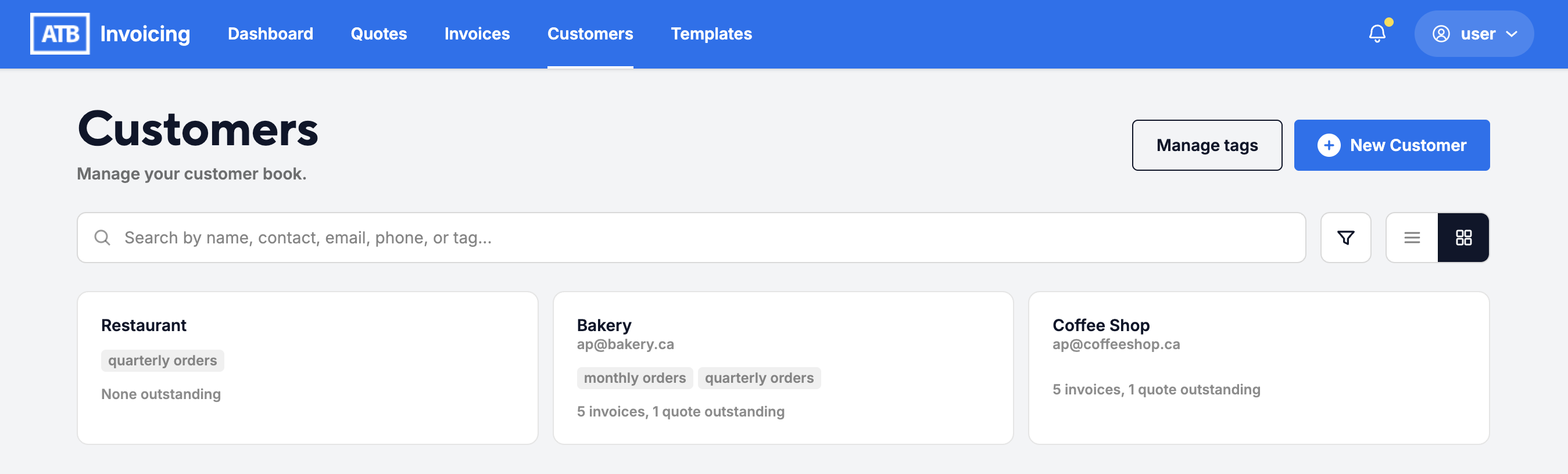
You can also toggle between the list icon (dense table view for rapid scanning) and the grid icon (card-based tile view).
Outstanding badges
In both List and Tile views, each customer shows an outstanding status badge summarizing active documents:
- Invoices: Highlights unpaid, active invoices in Sent, Viewed, or Overdue status. Drafts, paid, and void invoices are excluded.
- Quotes: Highlights quotes that are in a Sent or Viewed status.
- None: Displays None when all invoices and quotes are settled.
Click anywhere on a customer card or row to open their full profile.

