
You can update a customer’s profile details, addresses, tags, or payment settings at any time. However, editing a profile updates all previously sent quotes and invoices, including their live permalinks and future PDF downloads. To preserve historical information on past documents, create a new customer profile instead.
Step 1: Open the customer profile
- From the top navigation bar, click Customers.
- Locate the customer and click their row to open their profile screen.
Step 2: Edit customer fields
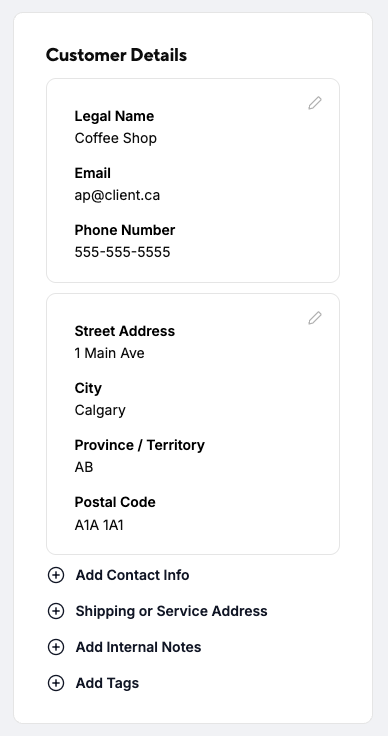
Under the Customer Details tab:
Click the Pencil icon or the + Add buttons to edit customer information.
- Legal Name, Email, and Phone Number: Core profile contact information.
- Billing Address: Tax compliance address (Address, City, Province, Postal Code, Country).
- Shipping or Service Address: Delivery or service location details (when different from the billing address).
- Billing Contact Info: Specific contact name, email, and phone number if invoices should go to a dedicated accounts payable person instead of the main business contact.
- Internal Notes: Private remarks visible only to your organization.
- Tags: Add or remove organizational tags directly using the search/add box.
Note: Top-level metrics (such as Outstanding Balance, Total Paid, and Sent Invoices) update automatically based on account activity and cannot be manually edited.
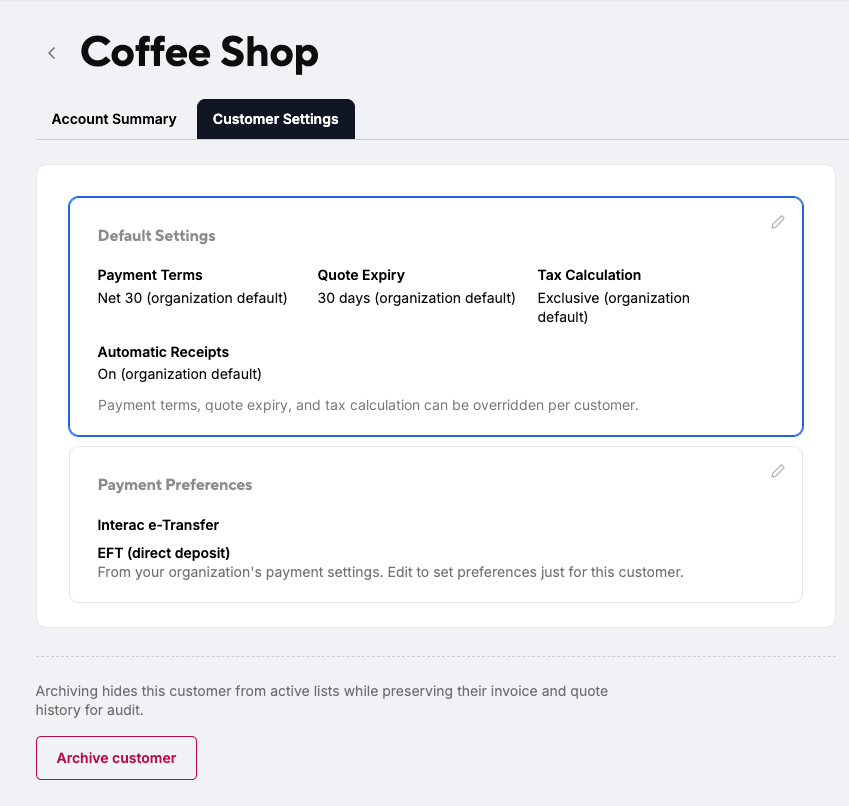
Under the Customer Settings tab:
Click the Pencil icon in the top right of each section to customize customer defaults:
- Default Settings: Customize customer-specific overrides for Payment Terms (e.g., Net 30), Quote Expiry (e.g., 30 days), Tax Calculation (e.g., Inclusive or Exclusive), and Automatic Receipts (e.g., On).
- Payment Preferences: Select specific accepted payment methods (e.g., Interac e-Transfer, EFT / direct deposit, cash, cheque) to set custom options or pull directly from your organization's payment settings.
Step 3: Save changes
Click Save or Save changes. The updated details will immediately display on the customer profile and automatically pre-populate on any new quotes or invoices you create for this customer.

