
The Invoices page is your central hub for tracking and managing all billing activity across your business. This guide covers how to search, filter, customize your view, and navigate your invoice records.
Top navigation controls
At the top right of the Invoices page, you'll find two main action buttons:
- Export CSV: Instantly download a line-item level record of your invoices for bookkeeping, accounting, or tax preparation.
- Create Invoice: Opens a new draft invoice form.
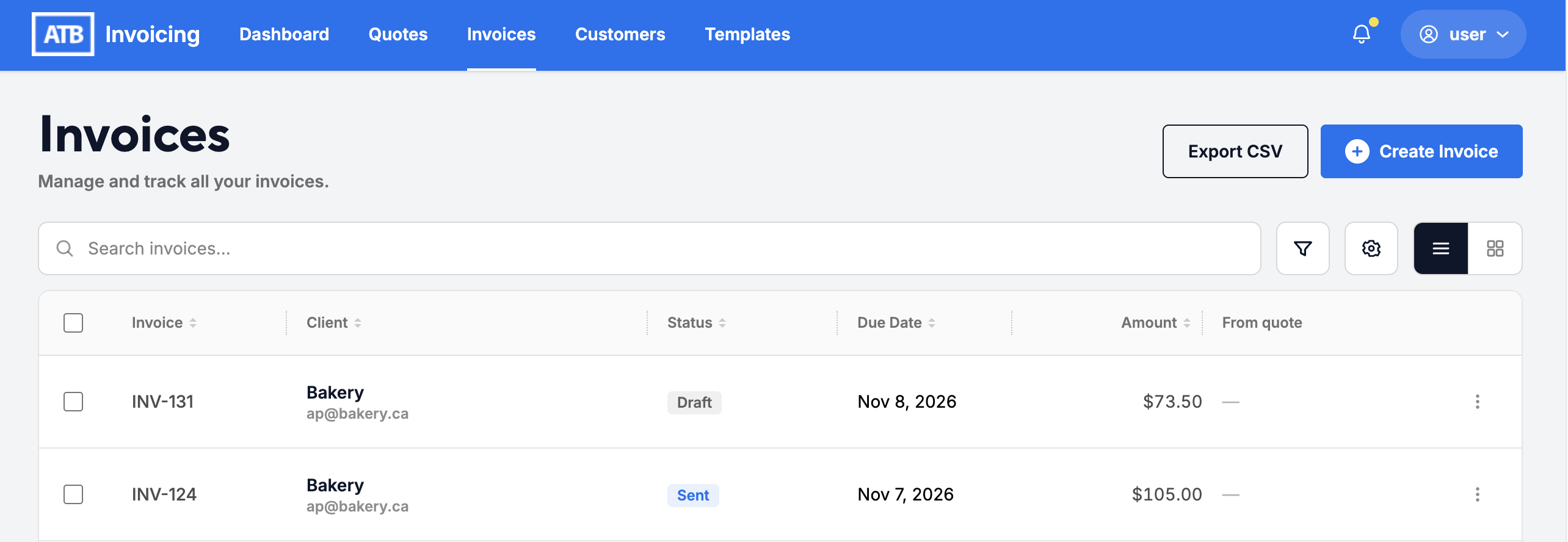
Search bar
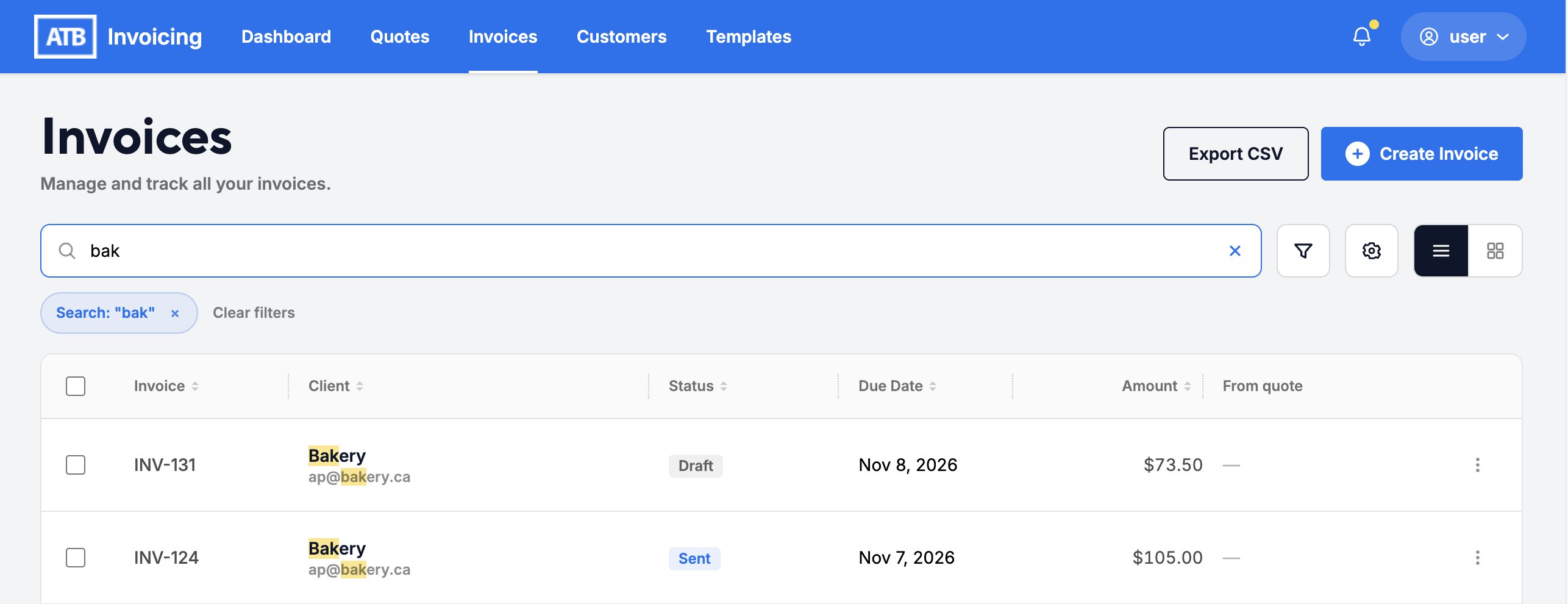
Use the central search bar above the list to quickly locate specific invoices. The search bar matches text across:
- Invoice number (e.g.,
INV-107) - Client / Customer name
- Client email address
Filtering options
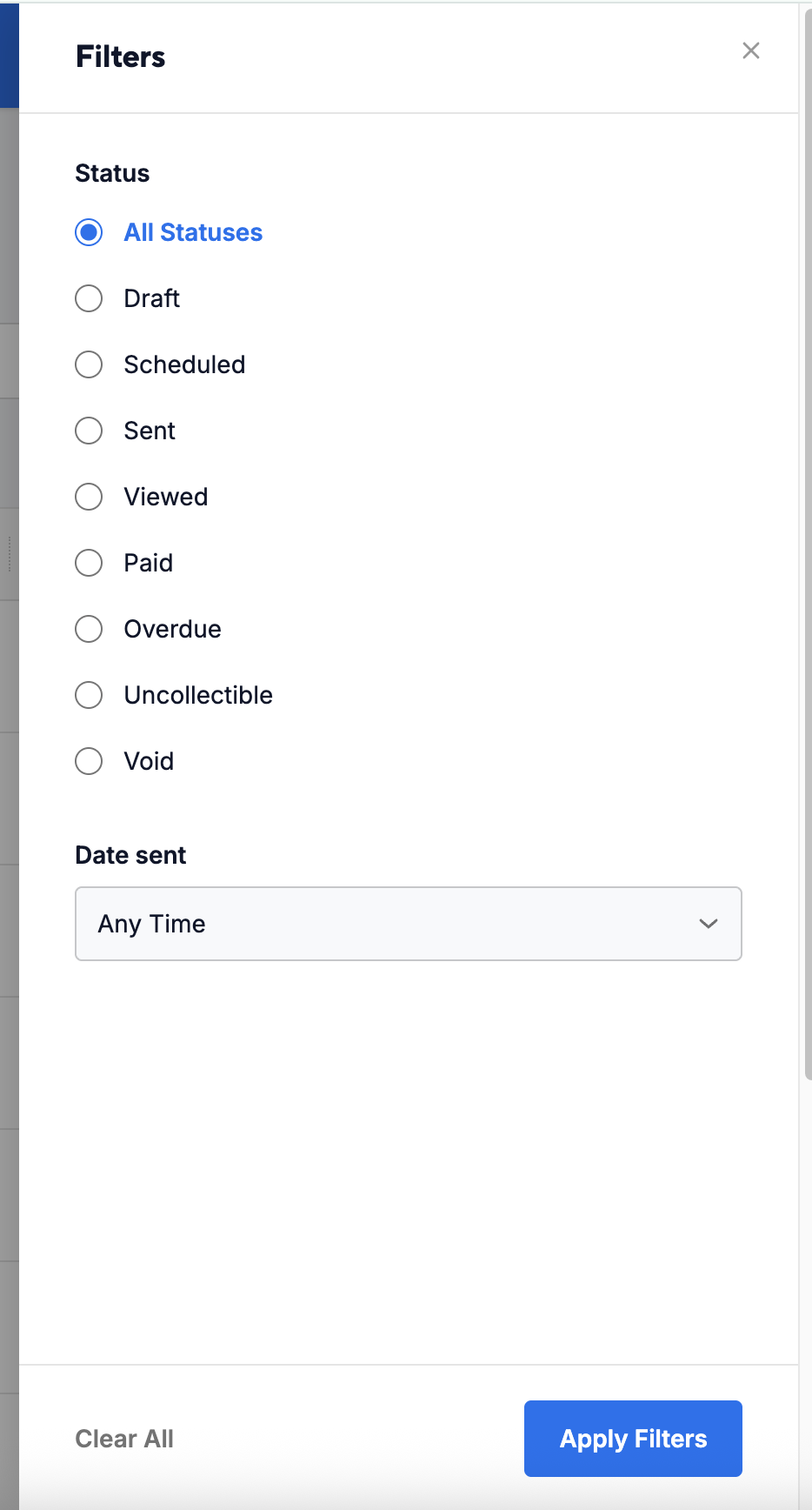
Click the Filter icon (funnel button) to open the Filters side panel:
- Status: Filter by specific document statuses
- Date Sent: Filter records by delivery date using the drop-down menu (e.g., Any Time or specific date ranges).
Click Apply Filters to update your view, or click Clear All to reset filters.
Views and table settings
Customize how your invoice data is displayed using the controls to the right of the search bar:
Column customization
Click the Gear icon to open the Column Settings panel:
- Show/hide columns: Toggle checkboxes to show or hide Client, Status, Due Date, Amount, or From quote. (Note: Invoice # is mandatory and cannot be hidden).
- Reorder columns: Click and drag the handle icons next to any column to change its position in the table.
- Click Done to save your layout.
View toggles
Switch between layout styles depending on how you like to work:
- List view (Horizontal lines icon): A dense table view built for fast scanning and detailed column views.
- Card view (Grid icon): A tile-based visual view displaying key details (Invoice #, Client Name, Status badge, Due Date, and Total Amount) on individual cards.
Quick actions
Click anywhere on an invoice row or card to open its full details page. You can also click the three dots (...) menu on any individual item row or card to access quick actions (such as resending, voiding, or downloading a PDF).

