
ATB Invoicing allows you to download a detailed record of your invoices in CSV format. You can use this file to share billing records with your accountant, import data into external bookkeeping software, or conduct custom reporting.
How to export your invoices
-
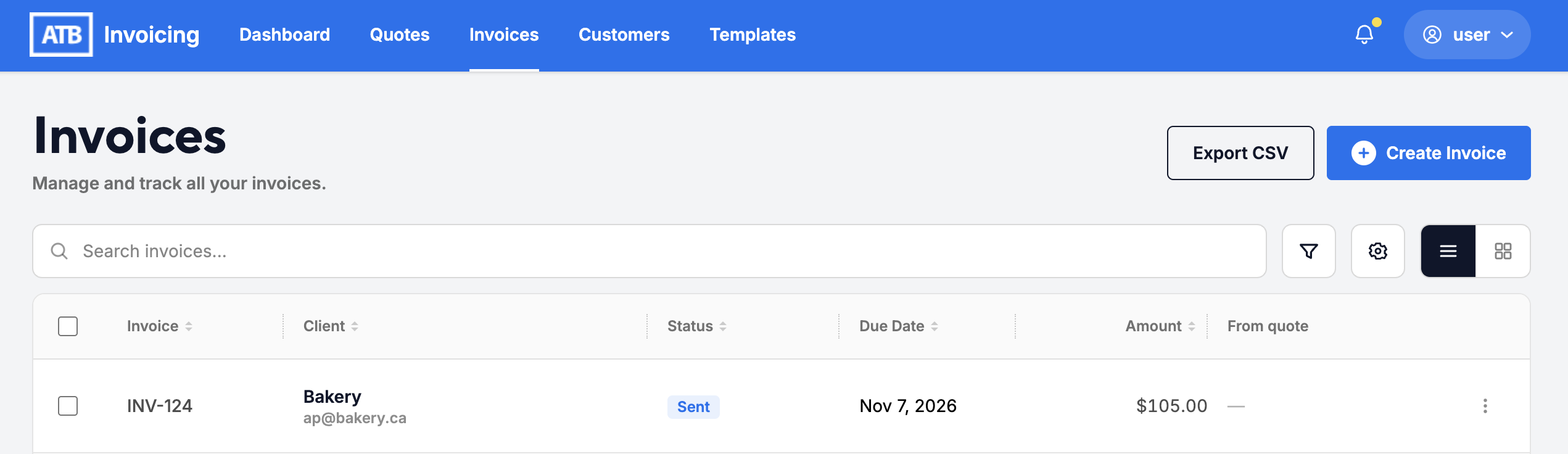
Go to the Invoices tab from the top navigation bar.
-
Click the Export CSV button in the top right corner.
-
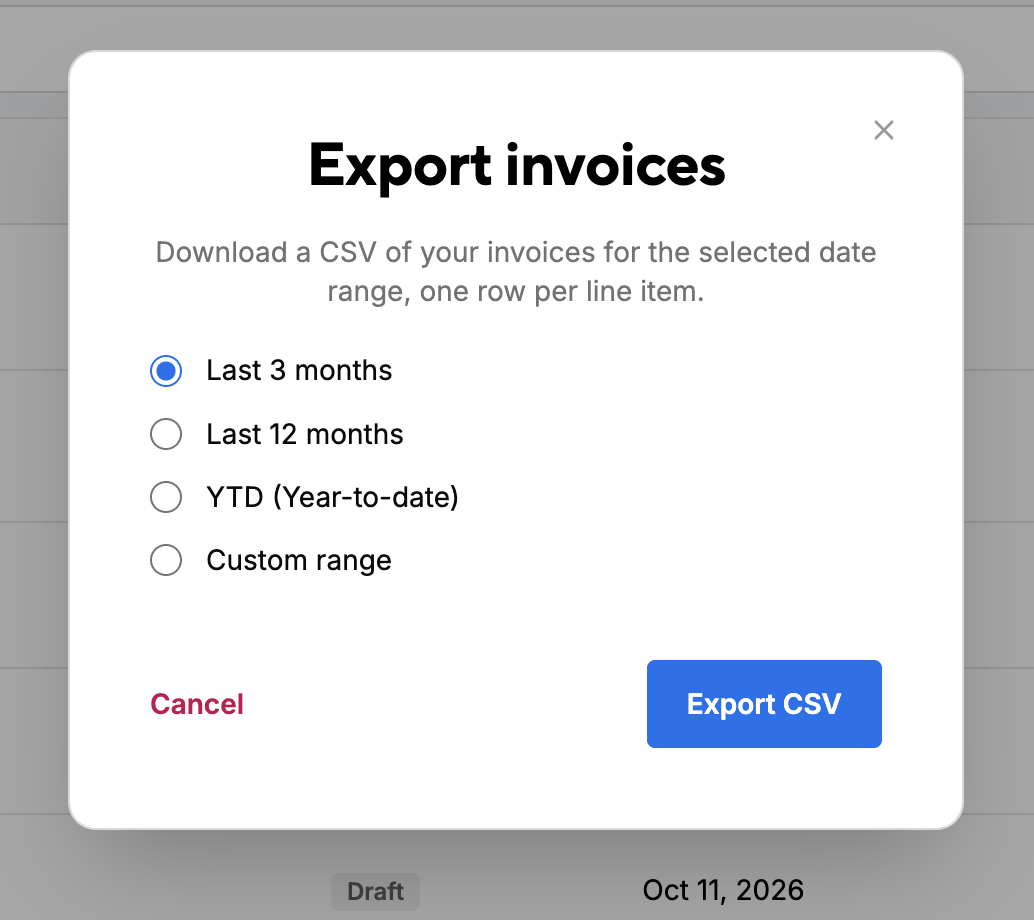
In the Export invoices modal, select your preferred date range:
- Last 3 months
- Last 12 months
- YTD (Year-to-date)
- Custom range (select specific start and end dates).
-
Click Export CSV to generate and download your file.
Data structure and file format
The downloaded CSV contains line-item level detail, meaning each line item on an invoice displays as its own row. Overall invoice totals and customer details are repeated on each line item row associated with that invoice.
Exported Columns
- Invoice Details:
Invoice_Number,Invoice_Date,Due_Date,Invoice_Status,Tax_Mode - Customer Information:
Customer_Name,Customer_Email,Contact_Name,Contact_Email - Line Item Breakdown:
Product_Service,Line_Description,Line_Quantity,Line_Rate,Line_Amount,Line_Discount,Line_Document_Discount,Line_Subtotal,Line_GST_Rate,Line_PST_Rate,Line_GST_Amount,Line_PST_Amount,Line_Tax_Total,Line_Total - Taxes & Adjustments:
Tax_Type,Tax_Amount,PST_Amount,Discount_Amount,Shipping_Amount - Invoice Balances:
Invoice_Total,Amount_Paid,Balance_Due
Upcoming product roadmap features
- Exporting Quote Data: CSV export capabilities for quotes will be introduced in a future release to help you track estimate history alongside your invoice records.

