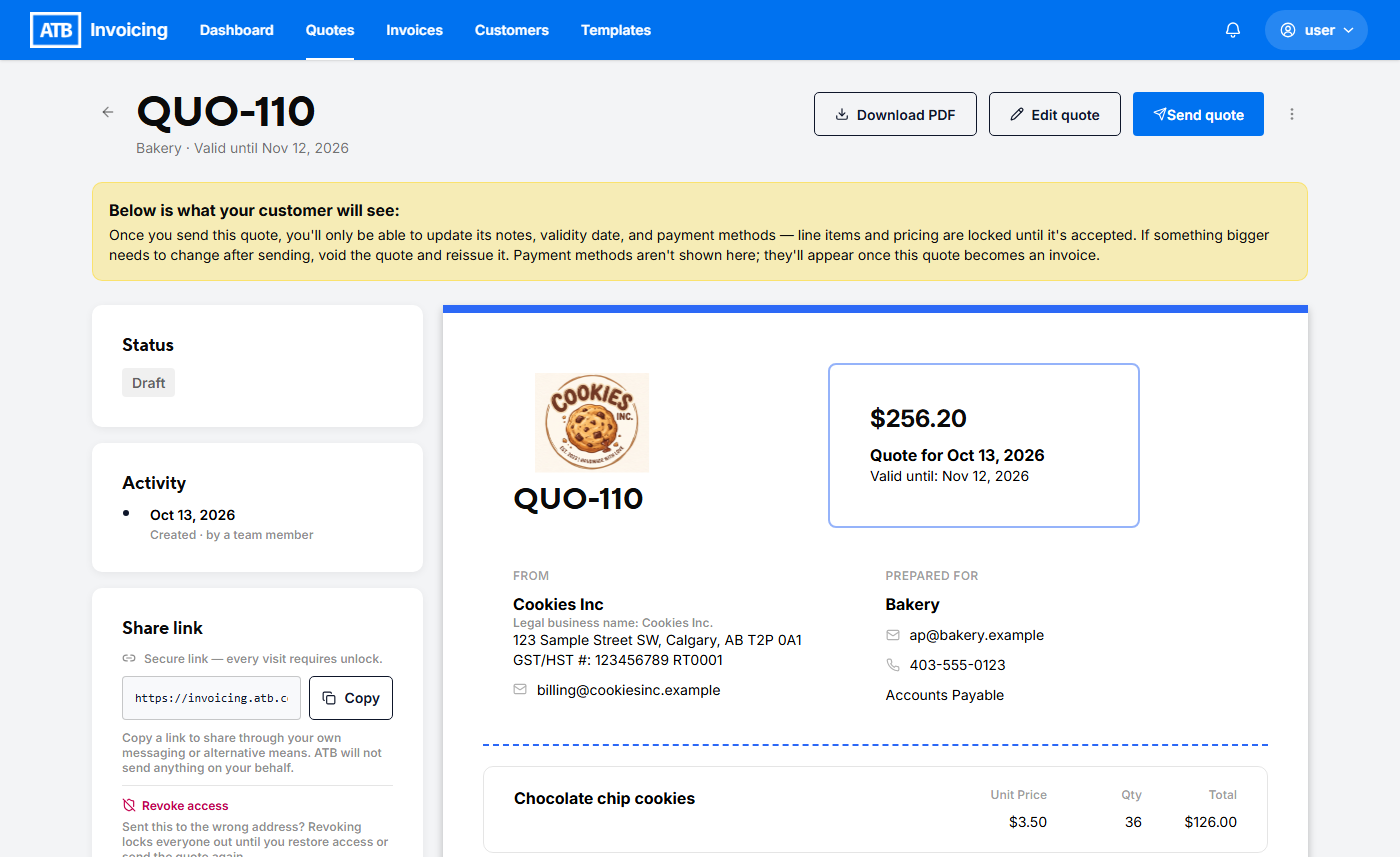
This article walks you through creating a draft quote—from opening the form to setting expiry dates, adding service estimates, and previewing your draft.
Step 1: Open the new quote form
You can navigate to the draft quote form from two places:
- Quotes tab: Click Create Quote.
- Customers tab: Open a specific customer profile and click New Quote (this automatically pre-populates customer details).
Step 2: Select or create a customer
Under the Bill To section:
- Select an existing customer from the dropdown menu.
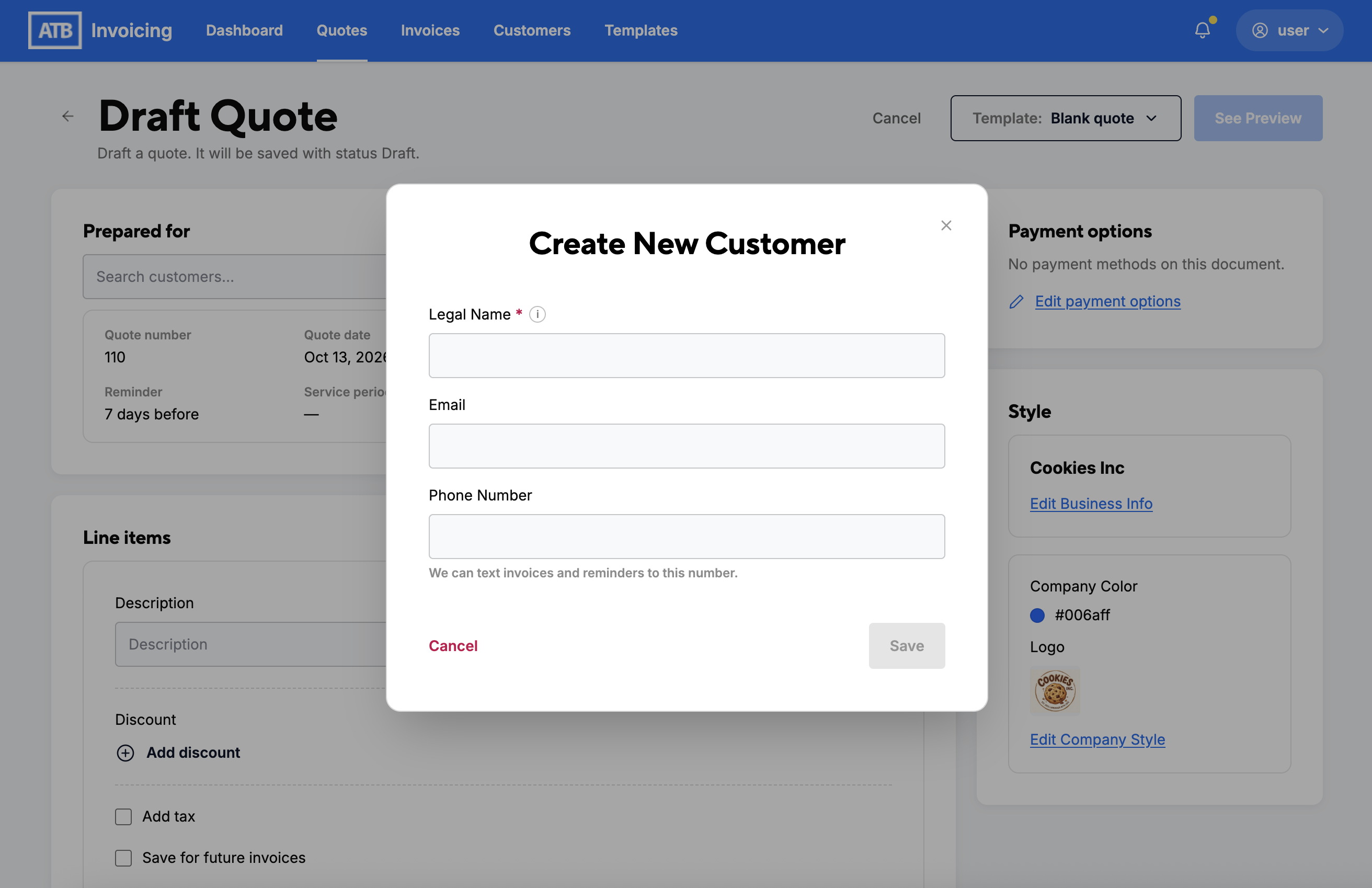
- If the customer isn't listed, click Create new customer to open a quick setup modal. Enter their Legal Name, Email, and Phone Number, then save to attach them directly to the invoice.
Step 3: Confirm quote details, numbering, and dates
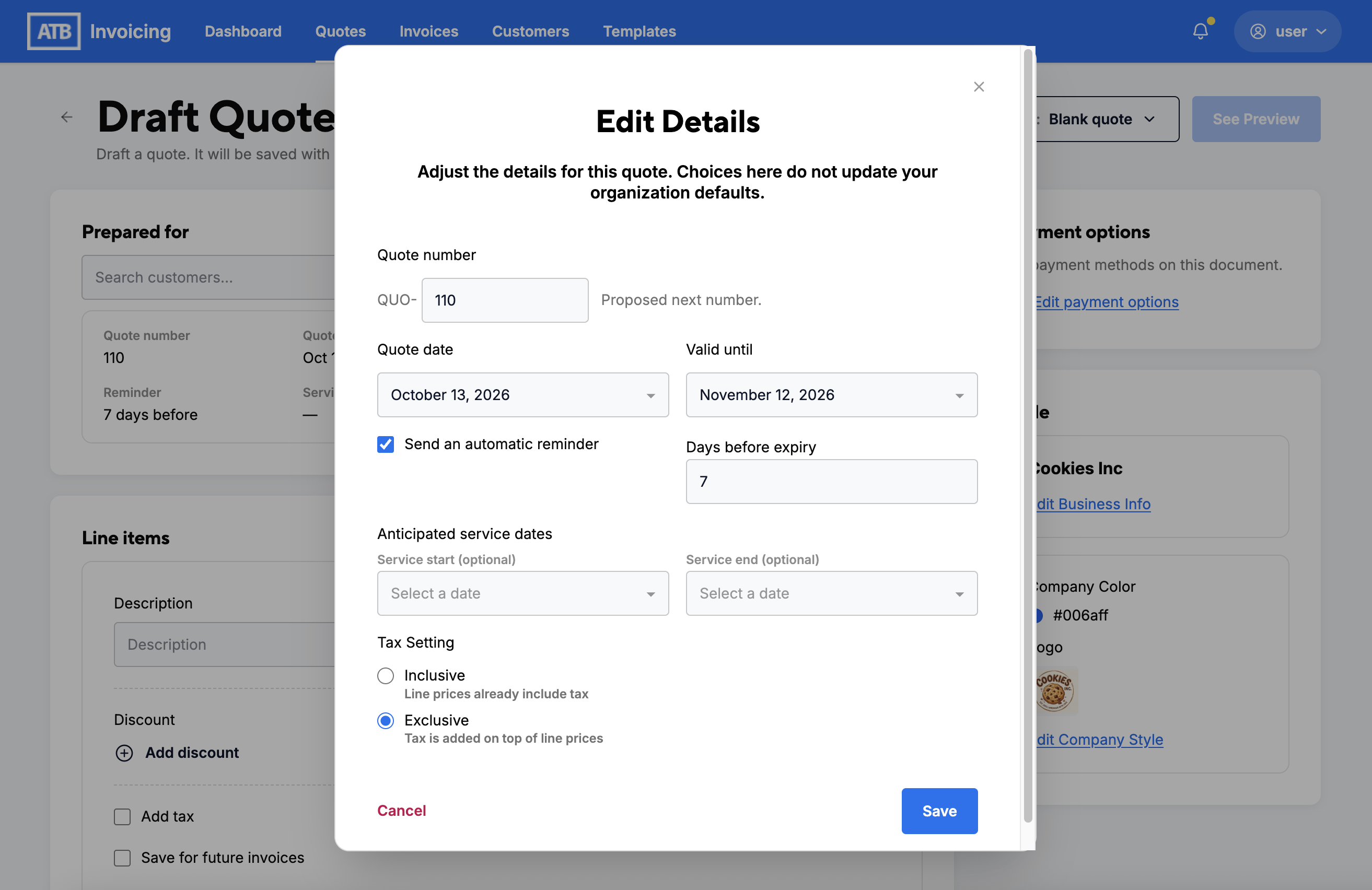
In the Details card, click the pencil icon to open the Edit Details modal. Adjustments made here apply only to this specific quote and do not update your organization defaults.
- Quote numbering:
- Auto-suggested number: Pre-fills automatically with
QUO-followed by the proposed next sequential number. - Custom overrides: Type a custom number directly into the field if required by your setup.
- Duplicate warning: If you enter an existing number, a warning prompts you to enter a unique value to save.
- Auto-suggested number: Pre-fills automatically with
- Issue date & expiry date:
- Issue date: Select the date the quote is issued using the date picker. This is auto-populated from today’s date.
- Expiry date: Set the date by which the customer must accept the quote before it expires. This is auto-populated from your client’s settings.
- Anticipated service dates (optional):
- Enter estimated start and completion dates to inform the customer when the work or service is expected to take place.
- Payment terms (internal only):
- Choose standard payment terms (e.g., Net 30). Payment terms on quotes are for internal record keeping only and are not displayed to the customer. They are used to calculate the due date if the quote converts to an invoice. Unlike invoices, payment terms on quotes remain editable at any stage of the quote lifecycle.
- Automatic Reminders: Check Send an automatic reminder to set the number of days before the due date (e.g., 7 days) that a reminder should be sent.
- Tax setting:
- Exclusive: Tax is added on top of line item prices.
- Inclusive: Line item prices already include tax.
Step 4: Add line items
Line items represent the individual products, services, or hours you are billing on this invoice. All prices and totals are currently calculated in Canadian Dollars (CAD).
For each item or service:
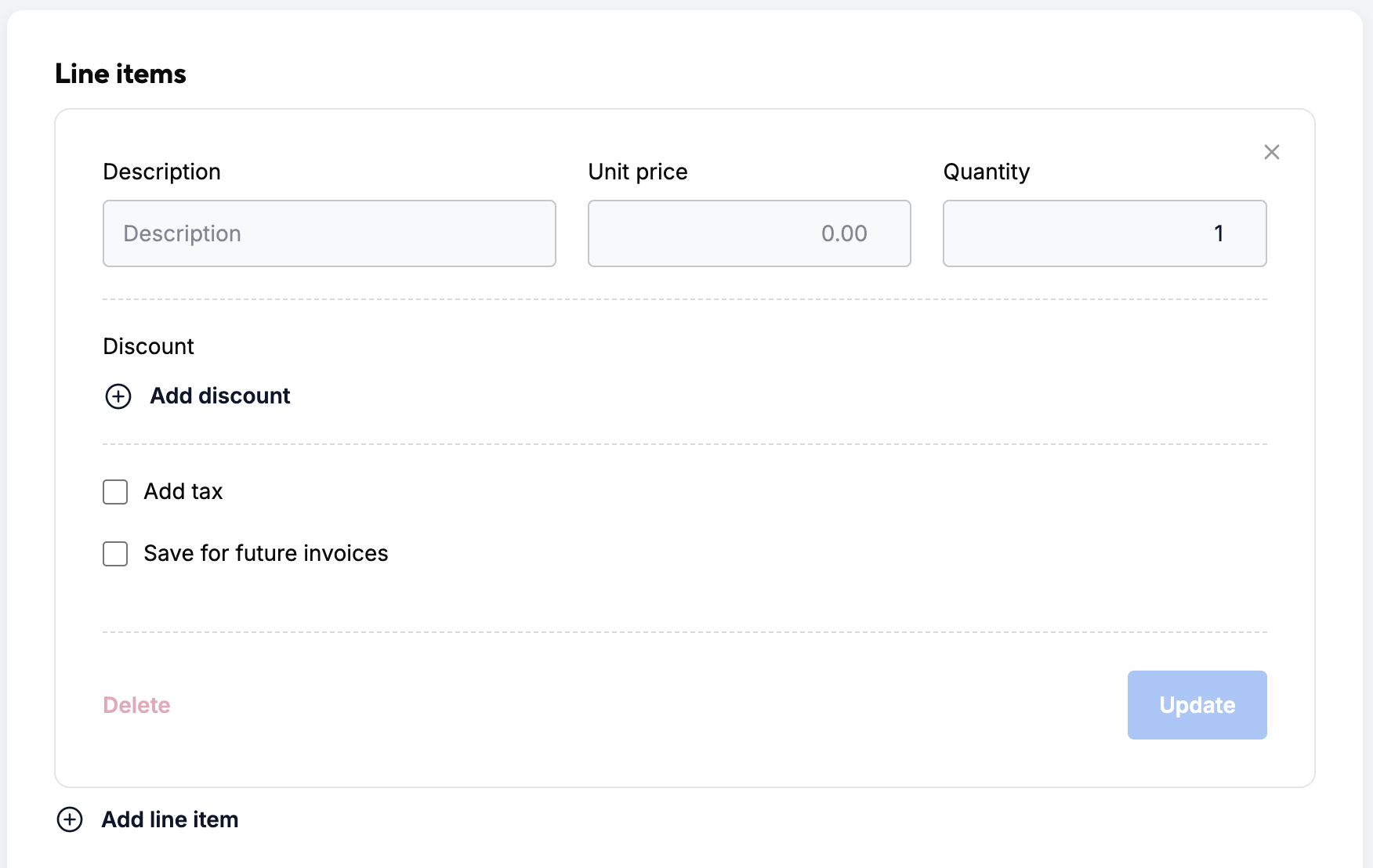
- Description: Enter a clear free-text description of what you are billing for (e.g., "Consulting services" or "Item #402").
- Unit price: Enter the price per unit in CAD (e.g., 150 or 85.50).
- Quantity: Enter the quantity. Both whole numbers and decimals are accepted (e.g., 10, 1.5, or 0.25 for partial hours).
- Discount: Click Add discount to apply a line-item discount directly to this item.
- Add tax: Select the Add tax checkbox to apply line-item based taxes to this item. You will typically only want to enable tax on individual line items if each line item on the invoice carries a different tax rate, such as tax-exempt vs. taxable goods.
- Save for future invoices: Check Save for future invoices if you want to save this line item configuration to reuse on future invoices.
When you click on a new line item's description box, a dropdown menu of pre-saved items will automatically appear, allowing you to perform a live search as you type to select and auto-fill saved items.
Managing Line Items:
- Click Add line item to insert additional rows/cards.
- Click Delete in the line item card (or the close icon X) to remove an item. (Note: Every invoice must contain at least one line item).
- Click Update (or Save) to confirm any changes or new additions made to the line item.
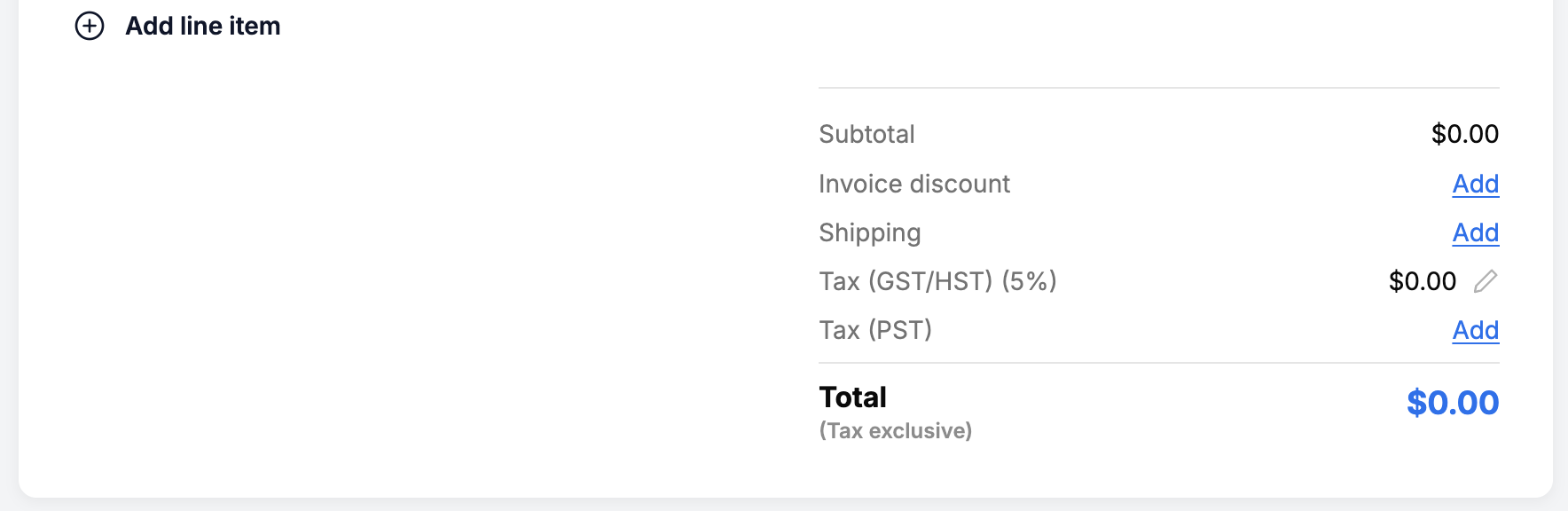
- The running Subtotal, Tax, Discounts, and Total Due (CAD) update automatically in the summary panel.
Tip: Use one line item per distinct product or service to keep billing clear for your customer's accounting records. If billing hourly work, enter your hourly rate under Unit price and the total hours under Quantity.
Step 5: Configure adjustments, taxes, and notes
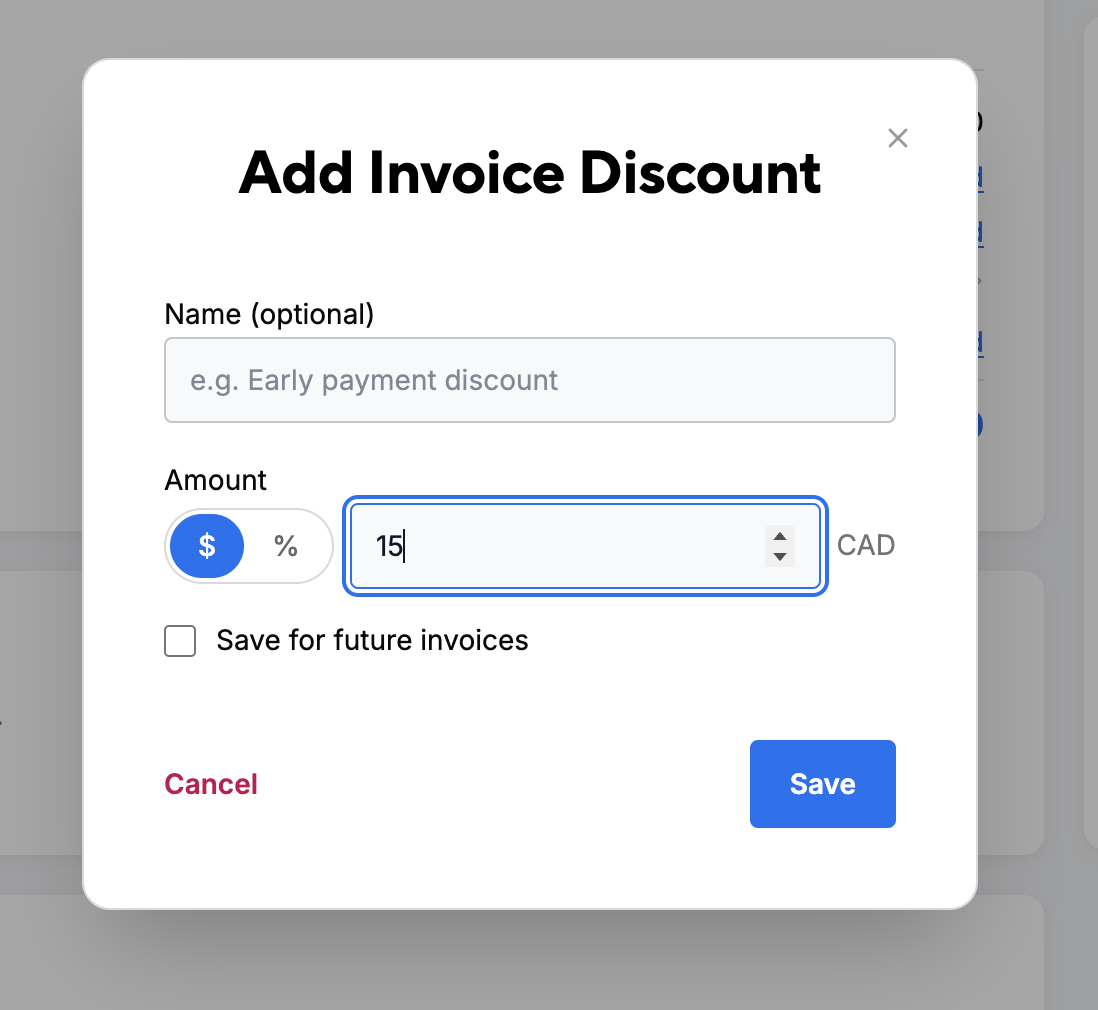
- Adjustments & discounts: Apply a quote-level discount by percentage (%) or flat dollar amount ($), or enter estimated shipping fees. You can also search and auto-fill pre-saved invoice discounts or shipping rates.
- Taxes (GST/HST and PST/QST): Set specific GST/HST and PST/QST rates based on your customer’s billing region. Tax applies to line items after discounts, and totals update automatically. You will not be able to adjust this if you have added taxes on specific line items.
- Notes: Notes typed on Customer Notes print directly on the invoice sent to the customer. They can also be saved for future use. Internal Notes are private notes visible only to you and your team within ATB Invoicing.
Step 6: Select payment options and optional settings
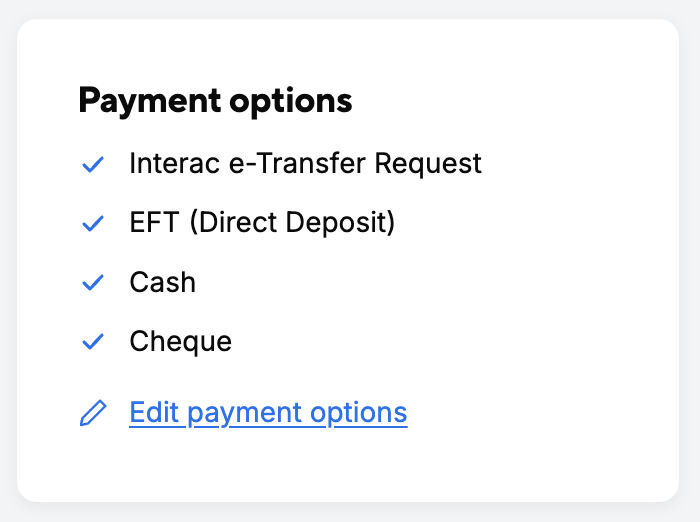
- Payment options: Pre-populates with your organization defaults or customer-specific preferences if assigned. Click Edit payment options to choose which payment methods will be presented to the customer if this quote converts into an invoice. Unlike sent invoices, payment options on quotes remain flexible and editable throughout the quote lifecycle.
- Branding & style: Confirm your visual settings under the Style card. Any brand colours, uploaded logos, or layout settings configured in your account will automatically apply to the quote preview.
Step 7: Save draft and preview
Click See Preview in the top header. The quote will remain in Draft status until sent, marked as sent, or deleted.