
Templates save you time by letting you store pre-filled line items, descriptions, rates, and notes for recurring services, orders, or quotes.
Creating a new template
You can create an invoice template in three different ways:
-
From the Templates dashboard: Go to the Templates tab in the main top header bar. Click either + New Invoice Template or + New Quote Template in the upper right.
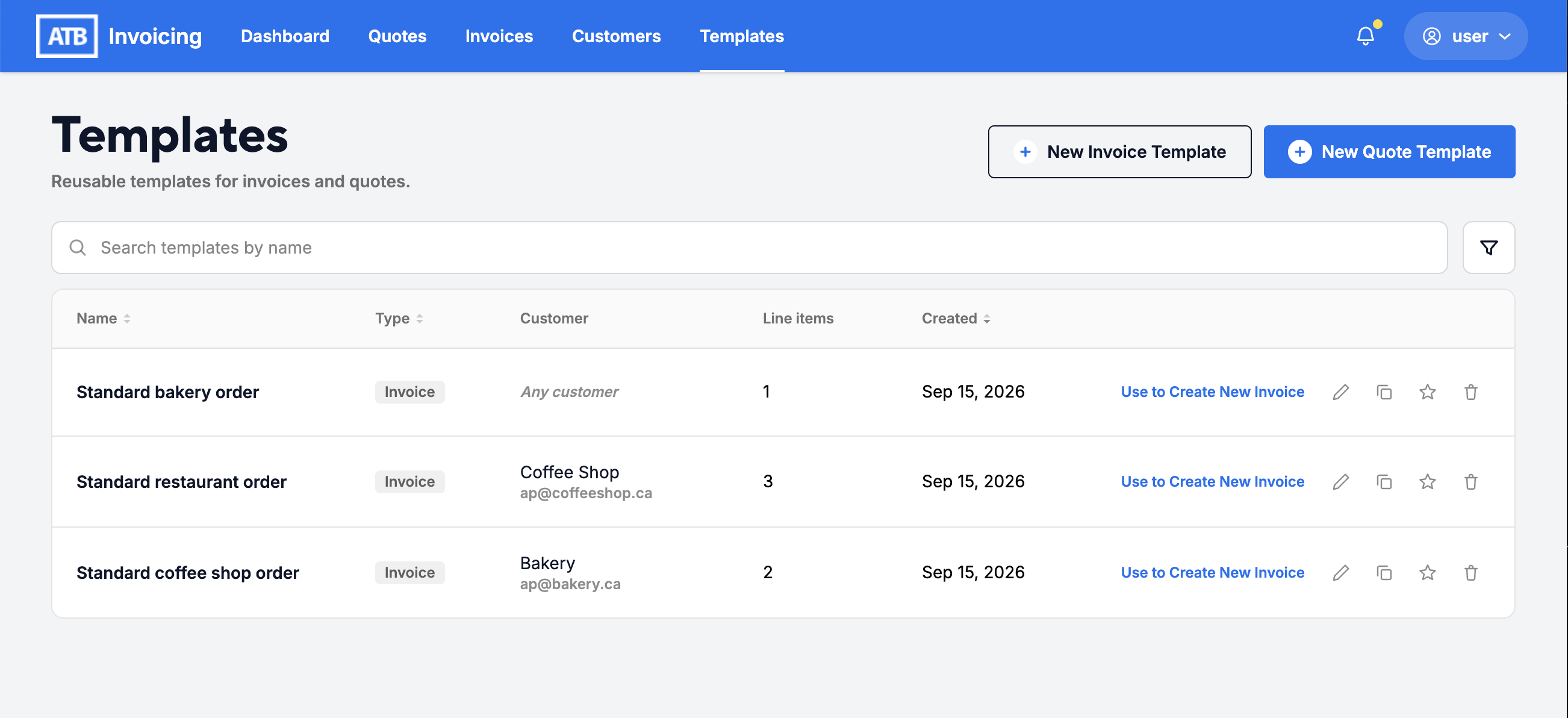
-
From the quote or invoice builder: While drafting a new invoice or quote, click the Template dropdown menu in the top header bar, select Save as new template, and enter your template details.
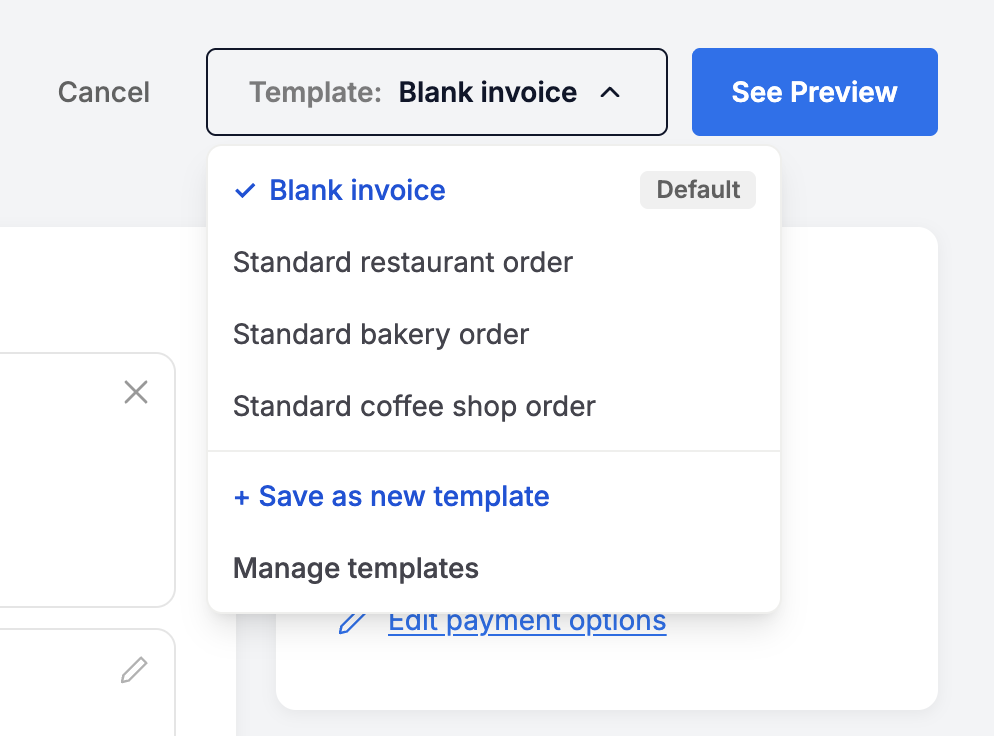
-
From an existing quote or invoice: Open any existing invoice or quote (in any status), click the three dots (...) menu, and select Save as template.
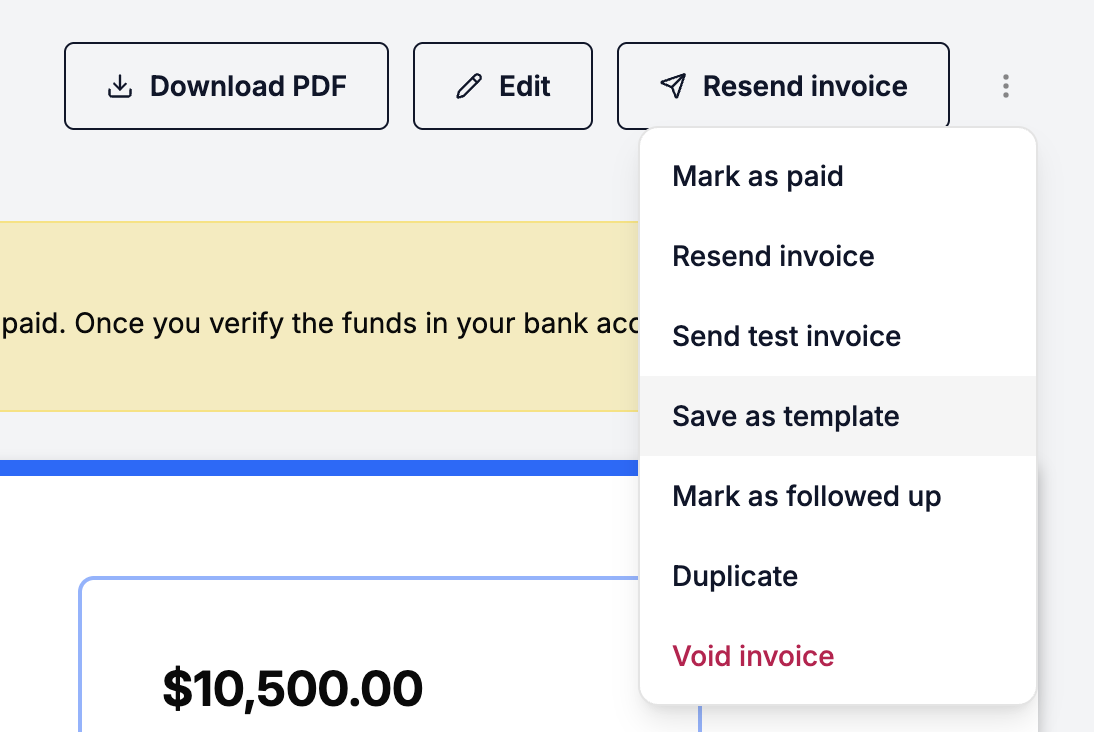
Setting a default template
You can set one default invoice template and one default quote template so that new documents automatically start pre-populated:
- When saving: Select the Set as default option when saving a template from the builder or template manager.
- From the templates list: Click the star icon next to any template on the Templates tab and select Set as default.
Note: Only one star/default is allowed per template type (one default for Invoice templates and one default for Quote templates). To remove a default, click the star again.
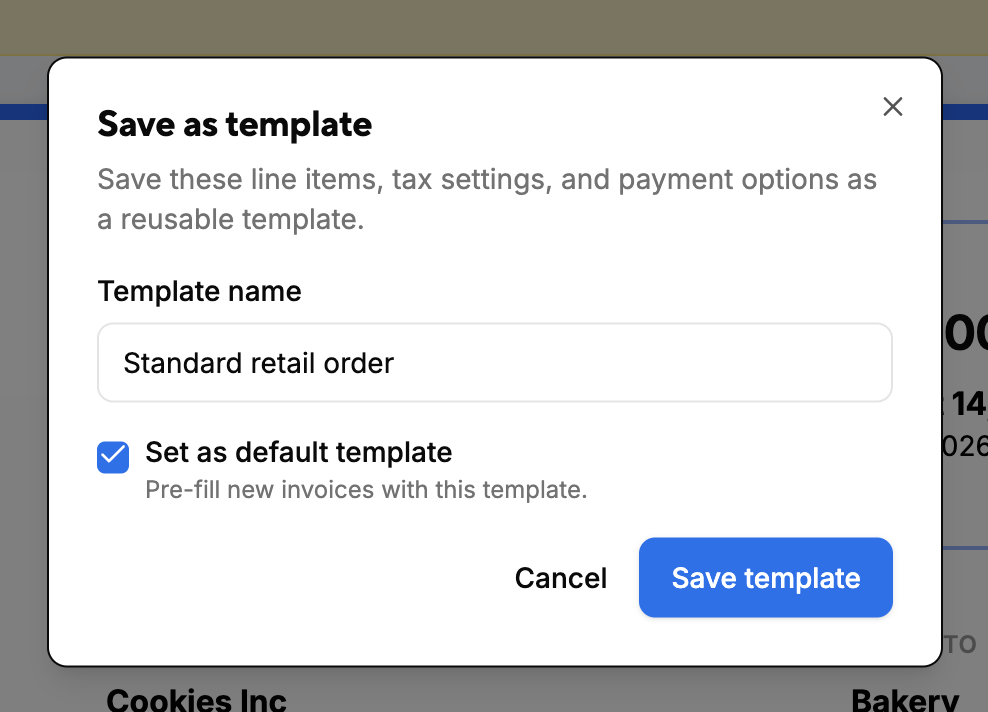
Using a template on a new invoice or quote
When creating a new invoice or quote, you can quickly switch between templates or start fresh:
- Click Create Invoice or Create Quote from the dashboard or respective tab. If a default template is set for that document type, it will load automatically.
- To switch templates, click the Template dropdown in the top header bar.
- Select any saved template to populate its line items and details, or select Blank to clear the form and start from scratch.
Editing and managing saved templates
To update, view, or manage your template list:
- Go to the top navigation bar and click the Templates tab
- Filter or search your list, or click directly into any template (or click the edit pencil icon) to update its default line items, notes, or settings.
- Alternatively, use the action icons
- Click the pencil icon to edit the template
- Click the clone icon to duplicate the template
- Click the star icon to set as default / Remove default
- Click the garbage icon to delete the template

