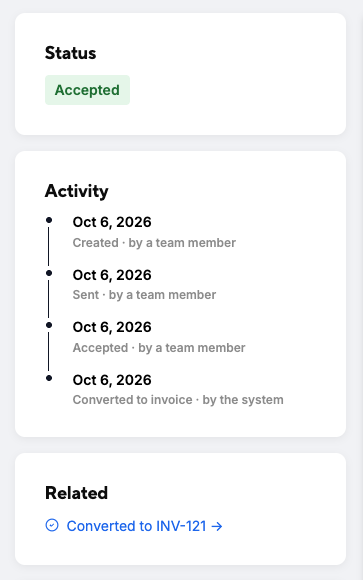
When a customer accepts a quote—or when you manually mark it as accepted—ATB Invoicing automatically generates a corresponding draft invoice. This seamless transition saves time on data entry while giving you complete control over review and sending.
How quote-to-invoice conversion works
- Automatic draft creation: The moment a quote moves to Accepted status (whether accepted directly by the client via their web link or marked as accepted by you), the system automatically creates a draft invoice pre-populated with all the details from the quote.
- No automatic sending: Converted invoices are always generated in Draft status. They are never sent automatically to your customer, giving you the opportunity to review, edit, or adjust details before issuing the final document.
- Full editability: Because the converted invoice remains in draft status, all fields—including line items, pricing, tax settings, issue dates, and payment terms—remain fully editable until you choose to send or schedule it.
Payment terms on quotes
To enable automated invoice creation, quotes require Payment Terms (e.g., Net 30, Due on Receipt) to be configured:
- Internal only: Payment terms selected on a quote are for internal record keeping only and are not displayed to the customer on the quote document or web permalink. They are used to automatically configure draft invoice settings.
- Flexible editing: Unlike invoices, payment terms on a quote can be edited at any stage of the quote lifecycle—even after the quote has been sent to the customer.
- Locking upon invoicing send: Once the quote is converted and the resulting invoice is sent, the payment terms (along with the invoice number, issue date, and tax settings) become permanently locked on the sent invoice.
Tracking linked quotes and invoices
You can easily navigate between a converted invoice and its original quote in two places:
1. Invoice directory
Go to Invoices and view the From quote column to see which invoices were created automatically from accepted quotes.
2. Quote details
Open any accepted quote to view its summary page. In the Related box, you will see a direct link showing "Converted to INV-###". Clicking this link opens the newly created draft invoice.