Before you can send an invoice, you need at least one customer in ATB Invoicing. This article walks you through adding a customer, setting up billing and shipping addresses, managing tags directly from the profile, and customizing customer settings.
Step 1: Open the new customer form
From the Customers top menu bar, click + New Customer in the top right.
Step 2: Enter basic customer details
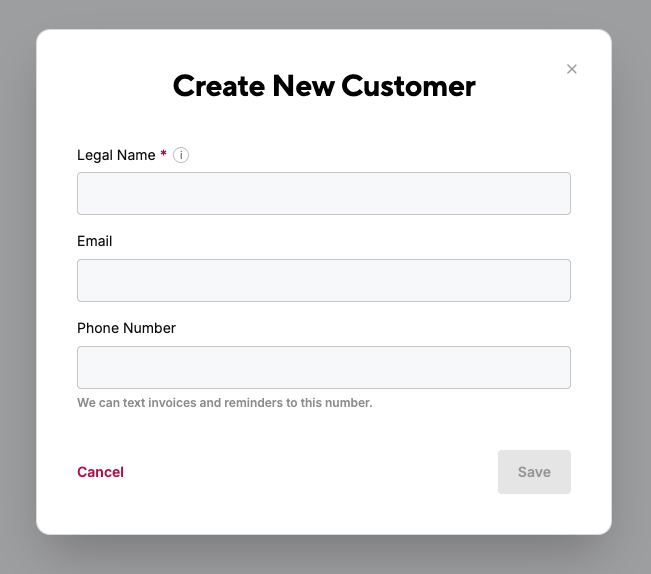
- Legal Name: (Mandatory) Enter the business name or individual’s full legal name.
- Email: (Optional) Add an email address to allow sending invoices and payment reminders via email.
- Phone Number: (Optional) Add a phone number to enable text messaging invoices and reminders to the customer.
Step 3: Save basic profile
Click Save to create the initial customer profile.
Step 4: Add additional details (Optional)
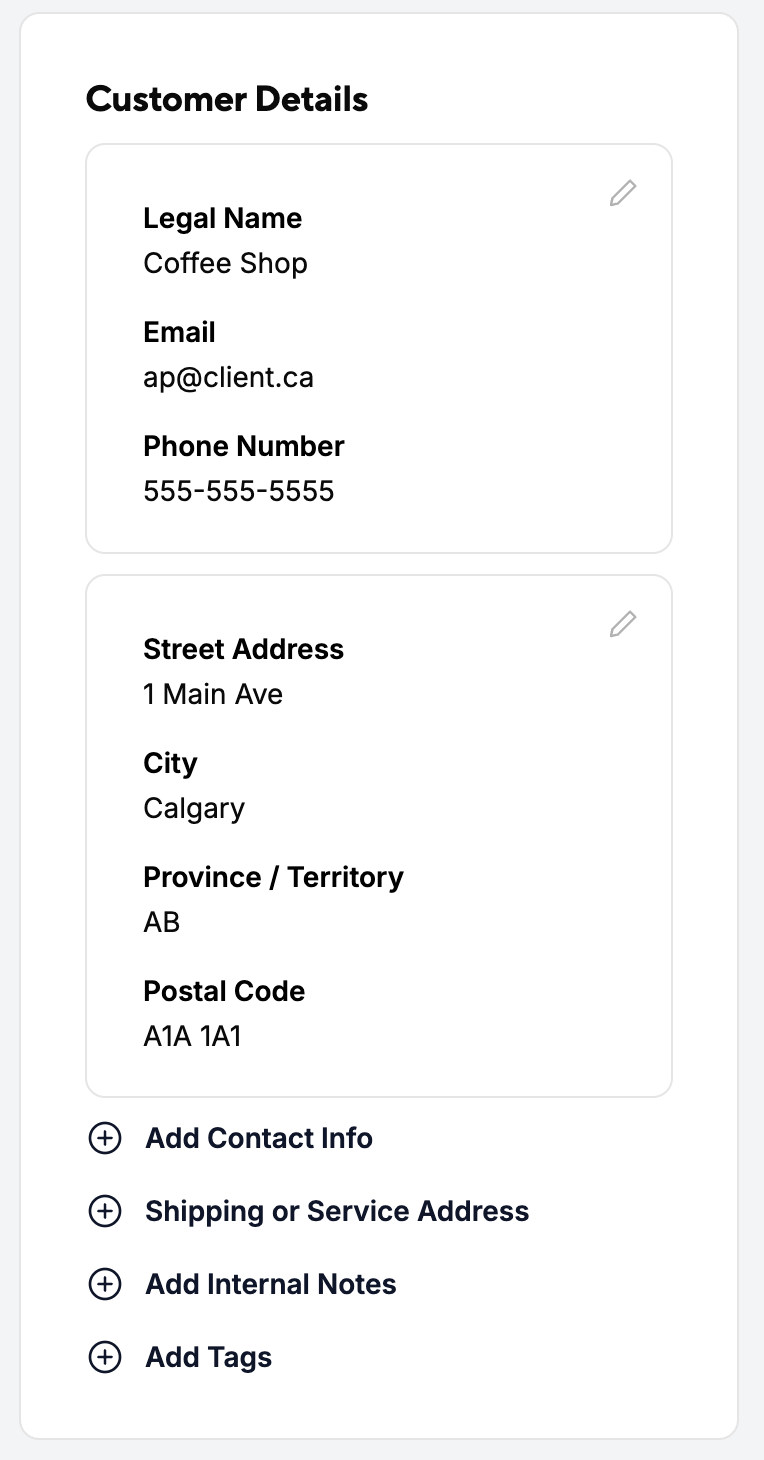
From the customer profile screen under Customer Details, you can add extra information:
- Billing Address: (Recommended for tax compliance) Add the customer's billing address (Address, City, Province, Postal Code, Country).
- Add Contact Info: Use this if the billing contact differs from the main business name (add specific Contact Name, Email, and Phone Number). Quotes and invoices will be sent to the Contact Email and Contact Phone Number if added.
- Shipping or Service Address:
- Check "Shipping or Service address is different from billing address" to enter a separate delivery/service address.
- If left unchecked, the billing address automatically serves as the shipping address.
- Note: Both billing and shipping addresses will carry through to quotes and invoices.
- Add Internal Notes: Add internal remarks (e.g., payment habits) visible only to your organization—never to the customer.
- Add Tags:
- Click the tag search box to view a dropdown of pre-created tags, or start typing to search for existing tags.
- If the tag you need doesn't exist, type the tag name and select the "Add new tag" prompt at the bottom of the list.
- Tags created directly from a customer profile automatically sync and display under Manage tags on your customer directory.
- To remove a tag, click the X on the tag chip inside the profile.
Step 5: Configure customer settings (optional)
Switch to the Customer Settings tab at the top of the profile to override default organization rules:
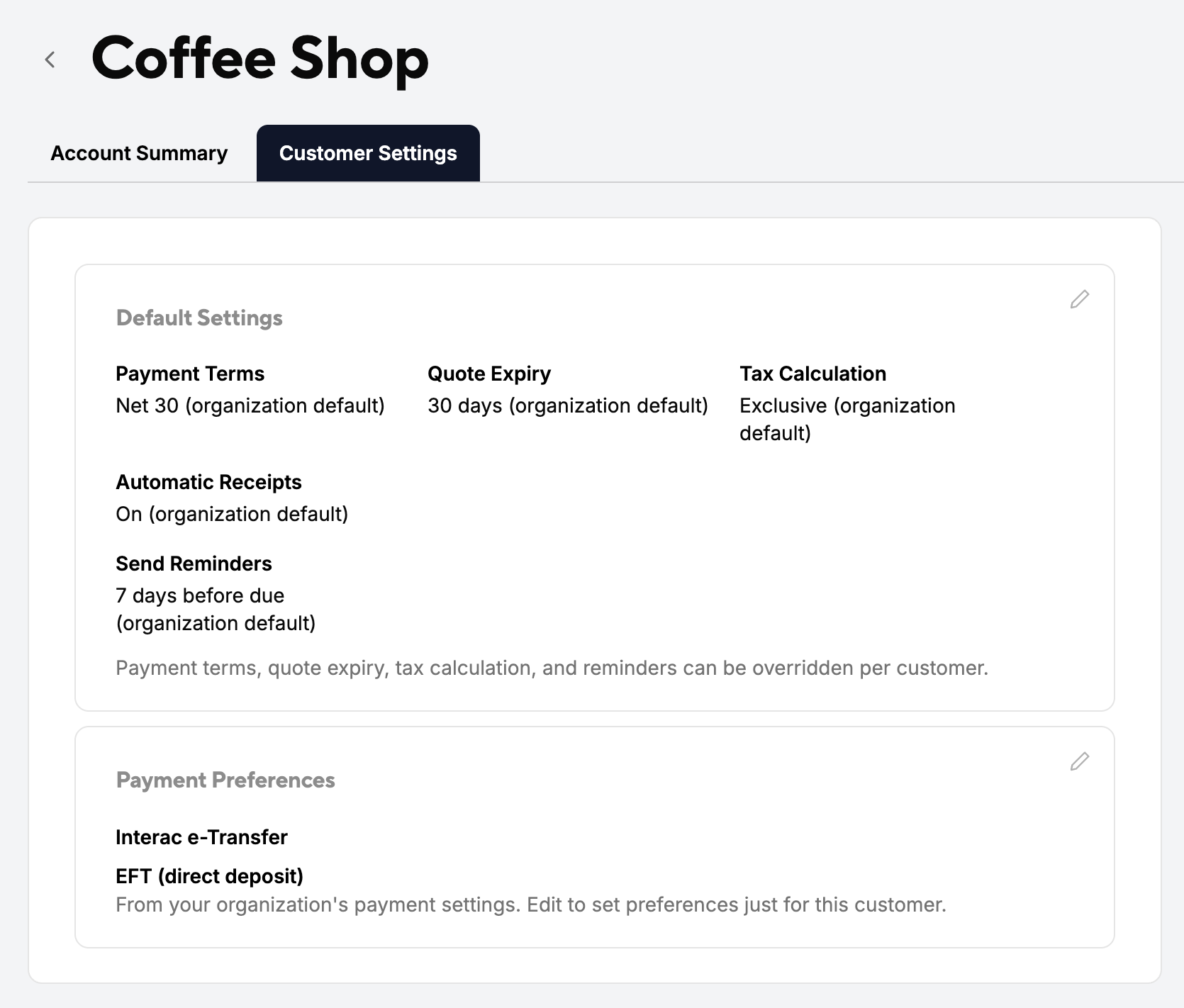
- Default Settings: Customize customer-specific overrides for Payment Terms (e.g., Net 30), Quote Expiry (e.g., 30 days), Tax Calculation (e.g., Inclusive or Exclusive), Automatic Receipts (e.g., On), and Send Reminders schedule (e.g., 7 days before due).
- Payment Preferences: Select specific accepted payment methods (e.g., Interac e-Transfer, EFT / direct deposit, cash, cheque) to set custom options or pull directly from your organization's payment settings.