
Whether you are cleaning up your client list or ending a business relationship, you can remove a customer from your active views by archiving or deleting their profile.
Action eligibility rules
The actions available for a customer profile depend on their invoice and quote history:
- Can delete: You can permanently delete the profile if the customer has no sent invoices or sent quotes (i.e., they either have zero quotes and invoices created, or all existing ones are strictly in Draft status).
- Must settle invoices (cannot archive or delete): If the customer has Outstanding (Sent/Overdue) invoices, you must settle them first—by marking them as paid or voiding them—before you can archive or delete the customer profile.
- Can archive: If the customer has no outstanding invoices (all invoices are paid/voided, or they only have quotes/drafts), you can archive the profile.
How to archive or delete a customer
Step 1: Check available actions
- Go to Customers from the top menu and select the client profile.
- Click the Customer Settings tab.
- Scroll to the bottom of the page to view your available options based on the client's current invoice status:
- Settle invoices prompt: Displays if there are outstanding invoices that need to be paid or voided first.
- Archive customer: Displays if all invoices are closed or if only quotes exist.
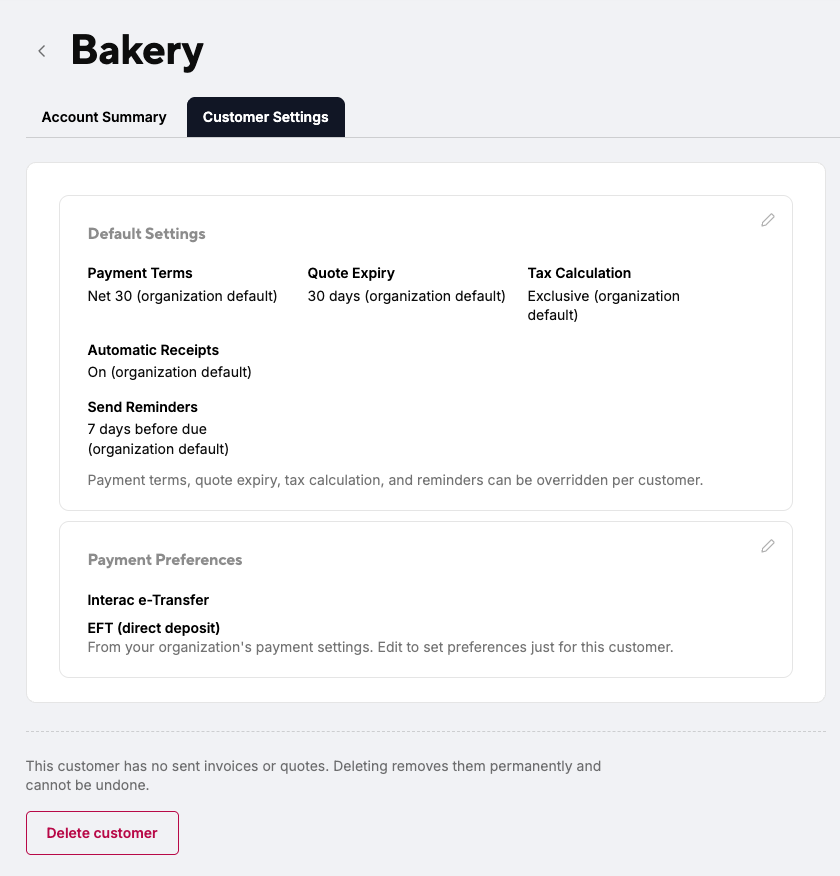
- Delete customer: Displays if there is no sent transaction history tied to the profile.
Step 2: Complete the action
Option A: Archiving a customer
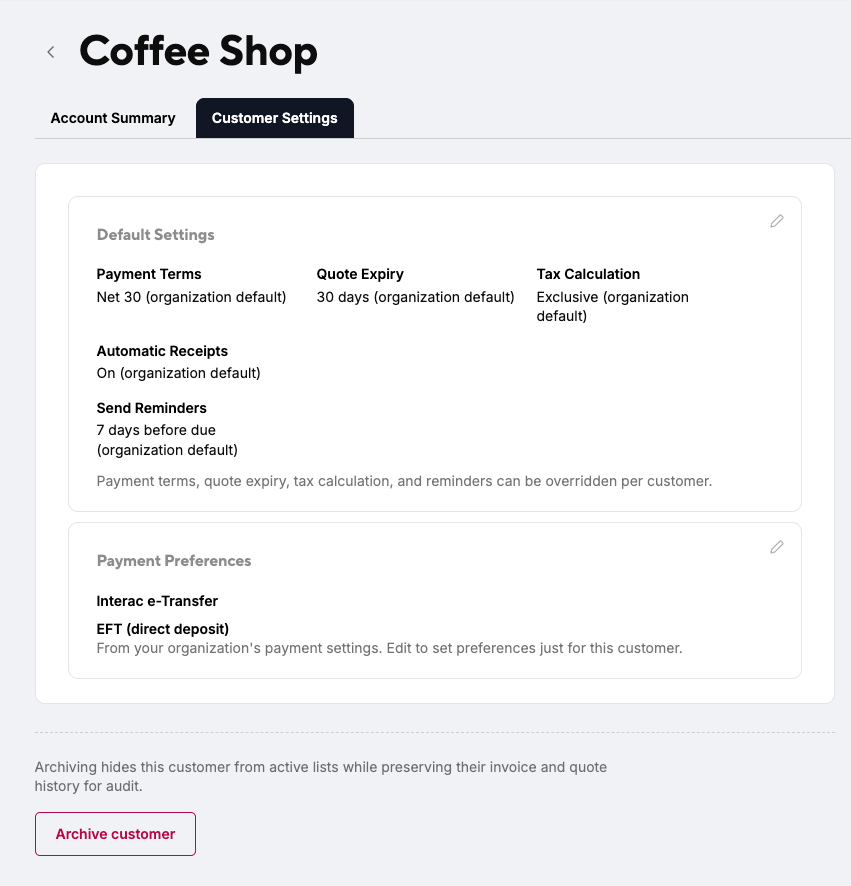
- Click Archive customer at the bottom of the Customer Settings tab.
- Confirm the action when prompted.
What happens when archived:
- The customer will no longer appear in dropdown menus when creating new quotes or invoices.
- Historical quotes and invoices remain fully intact for tax and record-keeping purposes.
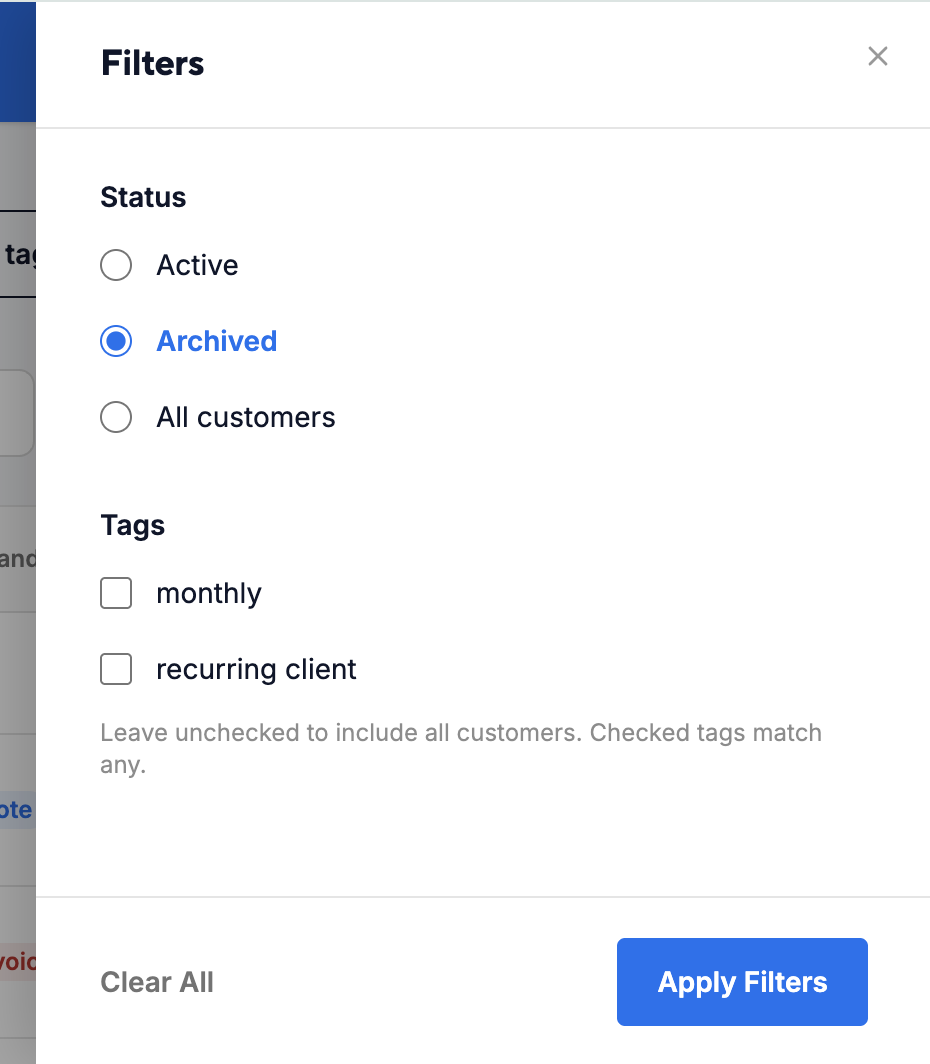
- To view or restore an archived customer, go to Customers, open the filter tab and select the Archived status, open the client profile, and click Unarchive Customer in the top right.
Option B: Deleting a customer
- Click Delete customer at the bottom of the Customer Settings tab.
- Read the confirmation prompt carefully and click Delete.
What happens when deleted:
- The customer profile is permanently erased from ATB Invoicing.

