
To protect sensitive business and billing details, ATB Invoicing uses secure, verified web links (magic links) for shared quotes and invoices. This guide explains how document verification works, how magic link security behaves for your customers, and how you can manage or revoke access at any time.
How magic link verification works
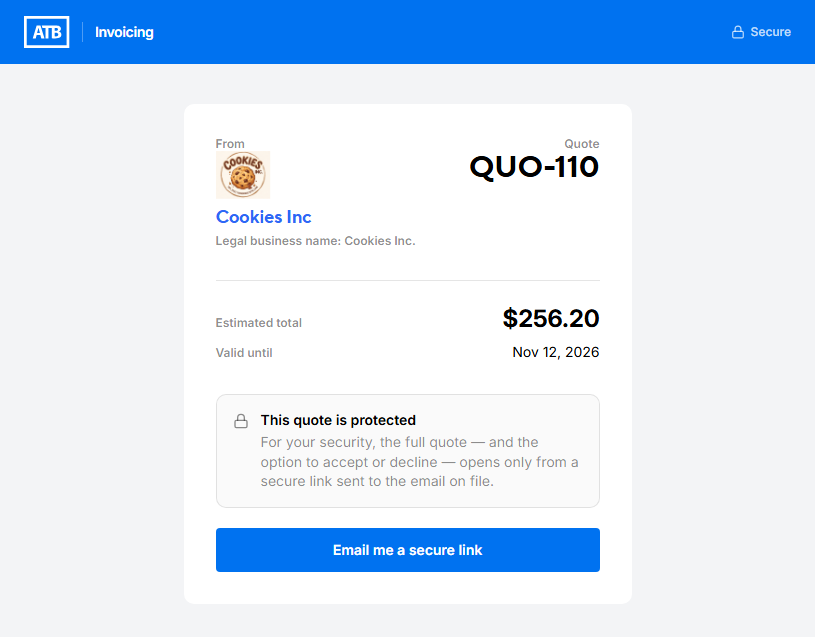
When you send a quote or invoice electronically, your customer receives a secure URL which is not publicly accessible. To view the document, the customer must verify their identity using the contact information saved on their customer profile:
- Contact email vs. billing email: If separate contact information is listed on the customer profile, verification defaults to the contact email. If no separate contact is listed, the system uses the main billing email address.
- Email and phone on file: If a customer profile includes both an email address and a phone number, the magic link automatically routes verification through their email.
- Phone number only: If only a phone number is listed, verification code links are delivered via SMS text message.
- No email or phone on file: If a customer profile contains neither an email address nor a phone number, automated emailing, texting, and magic link verification cannot be used. In these cases, you must download the quote or invoice as a PDF to deliver it to your client manually.
Magic link expiration and one-time verification
Magic links are designed with strict time and access limits to ensure maximum security:
- 15-minute expiration: Once sent via email or text message, a magic link remains active for 15 minutes. If the customer does not open the link within this window, the page will prompt them to request a new verification link, which will also be valid for 15 minutes.
- One-time access (re-verification): Magic links are one-time-use secure links. Every time a customer re-opens the link, they will be prompted to re-verify their identity to unlock the document.
Revoking and restoring document access
If you accidentally send a document to the wrong contact, or if you need to restrict visibility after sending, you can manage access controls directly from the document preview page.
To revoke access:
- Open the specific quote or invoice.
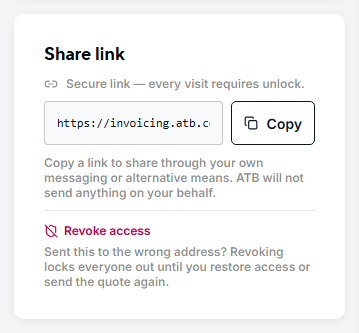
- Locate the Share link card on the preview page.
- Click Revoke access.
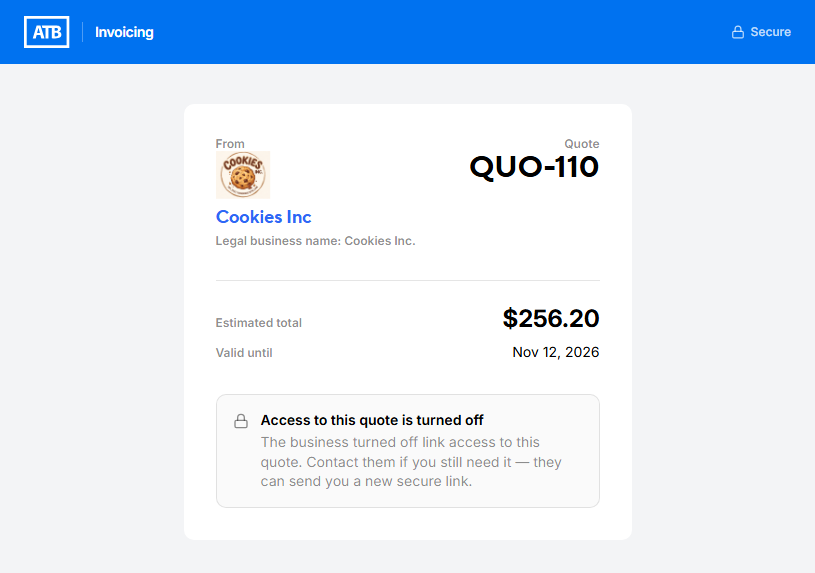
Revoking access instantly locks the web link for everyone, preventing anyone from opening or verifying the document until access is manually restored or the document is re-sent.
To restore access:
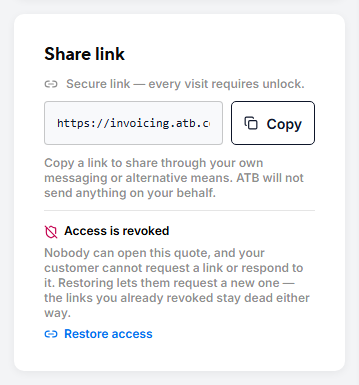
You can reinstate access at any time from the same Share link card by clicking Restore access.
Best practices for document privacy
While magic links and verification codes offer robust security and tight control over document access, no digital delivery method can completely guarantee privacy if link destinations or recipient accounts are compromised.
We strongly recommend double-checking recipient email addresses and phone numbers before sending quotes or invoices to ensure sensitive details are shared with the intended party.

