
ATB Invoicing allows you to draft an invoice and schedule it to be sent automatically at a future date and time. This helps you prepare billing in advance, line up recurring milestone invoices, or schedule invoice deliveries during optimal business hours.
Before you get started
Ensure the selected customer has an email address or phone number saved on their profile. If the customer profile contains both an email address and a phone number, the scheduled send will automatically deliver to both channels at the scheduled time.
How to schedule a send for a new invoice
- Create a new invoice
- Complete all required fields, including line items, customer details, and payment options.
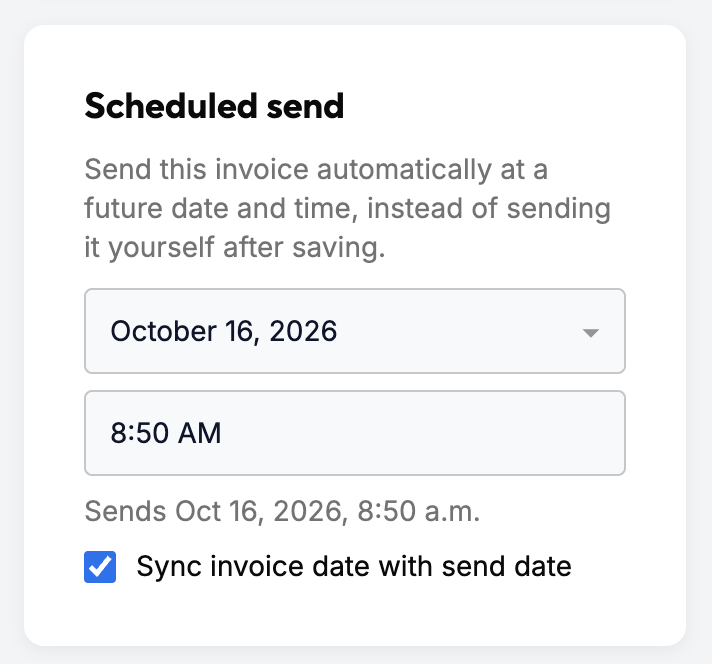
- Under the Schedule send section to the right of the invoice editor, select your desired Send date and Send time.
- Check the Sync invoice date with send date box to automatically readjust the invoice's issue date and due date to match the scheduled send date.
- Once you click “See preview”, the invoice status will update to Scheduled and send on the saved date and time
How to schedule a send for a drafted invoice
- Open the drafted invoice
- Under the Schedule section to the left of the preview, select your desired Send date and Send time.
- Click Schedule to save
- The invoice status will update to Scheduled and send on the saved date and time
Editing or cancelling a scheduled send date and time
You can cancel a scheduled invoice or update its date and time at any point before the scheduled send time.
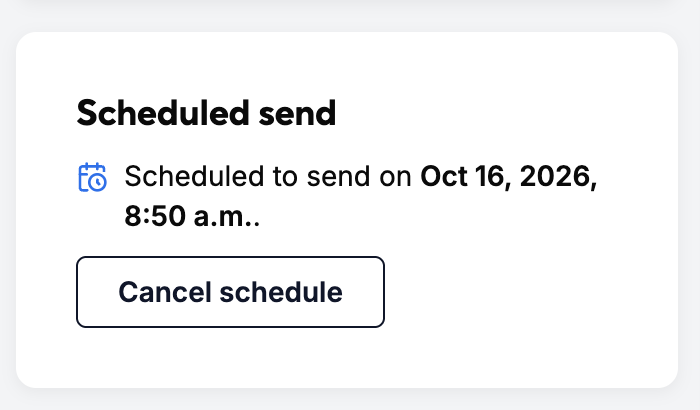
To change the date or time of a send, you must cancel the current schedule and then resave/reschedule the timing with your updated details.
To edit or cancel the scheduled send date and time
- Open the scheduled invoice.
- Scroll down and click Cancel schedule
- (Optional - To Edit) Make any required changes to the invoice details, date, or time, and then resave and reschedule it.
What happens when the invoice is sent
At the scheduled date and time, ATB Invoicing automatically delivers the invoice via your chosen channel(s):
- The invoice status changes from Scheduled to Sent.
- Line items, pricing, tax settings, and invoice numbers become permanently locked.
- If a customer opens the permalink after delivery, the status automatically updates to Viewed.

