
In ATB Business, user roles are managed centrally as Administrators or Sub-Users. ATB Invoicing builds directly on these online banking roles, allowing organizations to collaborate securely by granting sub-users access to invoicing workflows while restricting sensitive administrative tasks. This article explains how Administrator and Sub-User roles work across ATB Business and ATB Invoicing, how to grant platform access, and how to configure invoicing permissions.
Read more about User Management for ATB Business.
Overview of roles
- Administrator (Admin): The primary account holder in ATB Business who completes the initial onboarding for ATB Invoicing. Admins have full access to all features, settings, connected bank accounts, and permission management.
- Sub-User (User): Secondary user roles set up within ATB Business Online that can be granted access to various banking features, including ATB Invoicing. Their specific capabilities within ATB Invoicing are configured and managed directly by the Administrator. They will start with view-only access to the platform.
Setting up sub-users
Adding a sub-user to ATB Invoicing requires a two-step process:
Step 1: Add or manage sub-users in ATB Business Online
The admin must manually grant the sub-user permissions through the ATB Business platform.
1. Access permission settings
- Log in to ATB Business.
- Locate the Admin header at the top of the page.
- Select "Roles" from the drop-down menu.
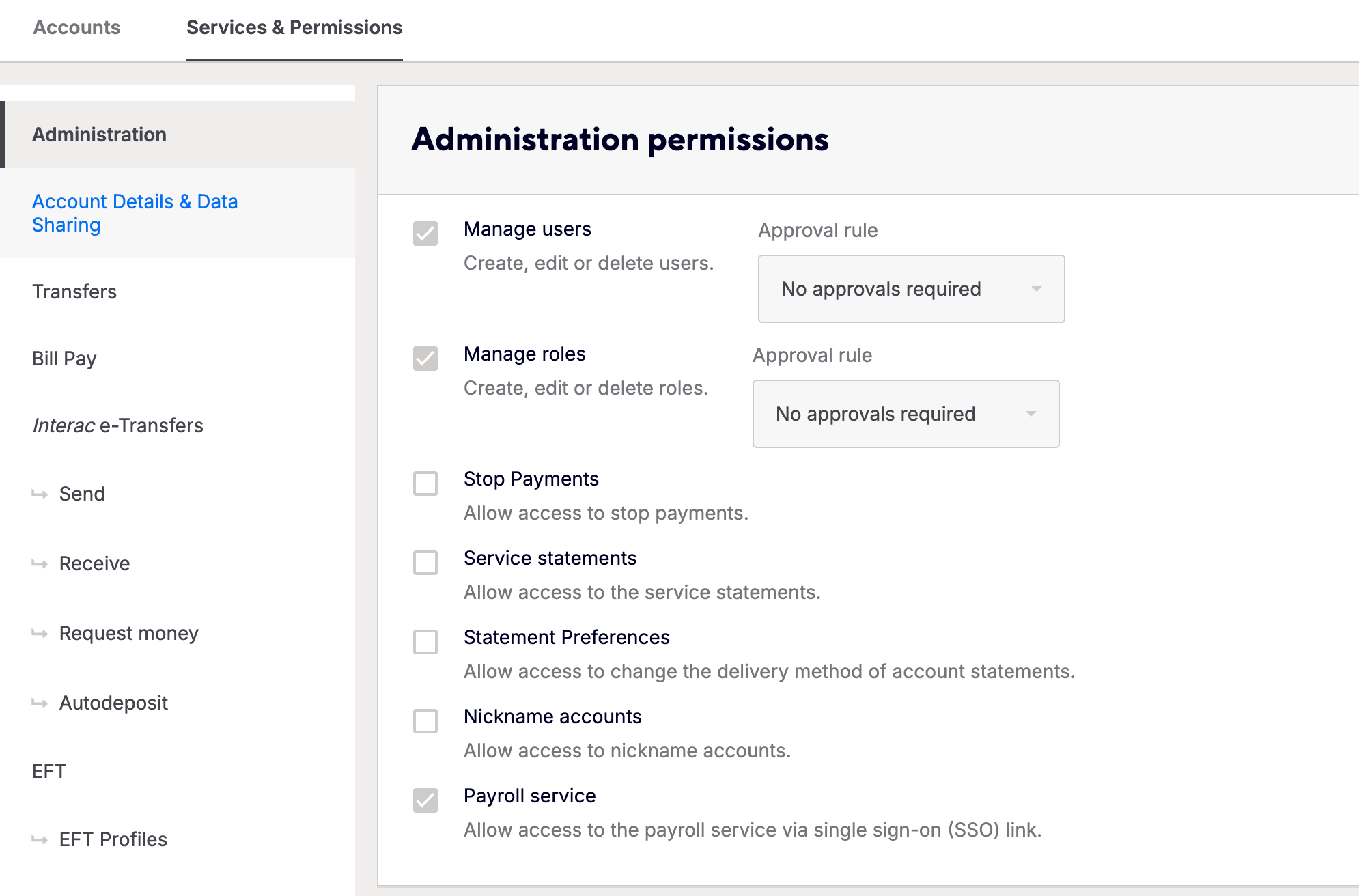
2. Configure permissions
- Select an Existing Role to edit or Create a new one.
- Navigate to the "Services & Permissions" section.
- Locate the "Payroll service" option at the bottom and ensure the checkbox is checked to provide access to your sub-users.
Step 2: Configure permissions in ATB Invoicing
Once a sub-user has been granted access to ATB Invoicing, an Administrator can define their specific capabilities within the platform:
- Log in to ATB Invoicing as an Administrator.
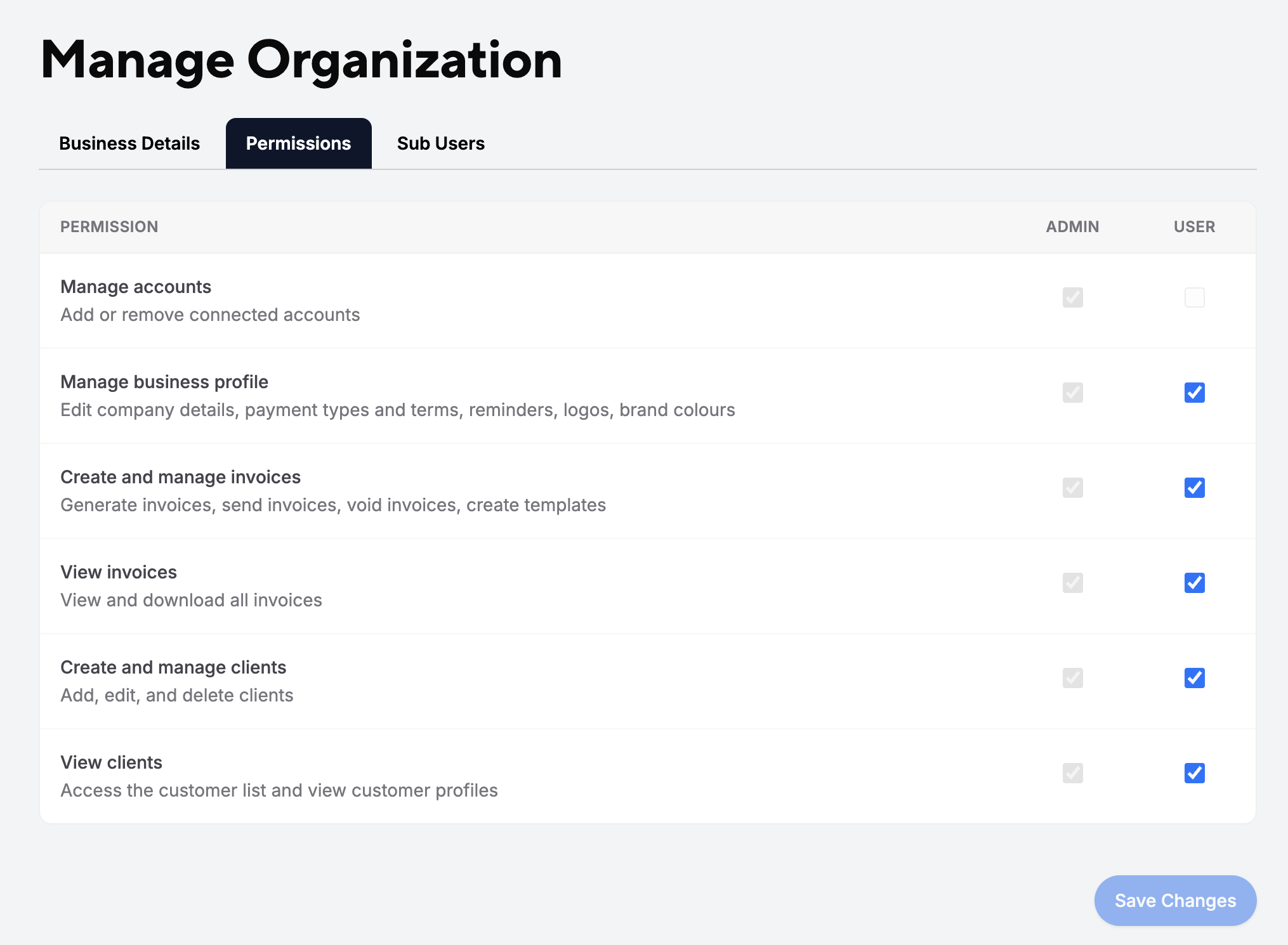
- Click your username in the top-right corner and select Manage Organization.
- Navigate to the Permissions tab.
- Check or uncheck the available permission options for the User role.
- Click Save Changes.
Understanding permissions
Administrators have full administrative rights, including exclusive management of connected financial accounts. Other permissions can be customized for sub-users as needed:
- Manage accounts: Add or remove connected accounts. (Admin only—cannot be granted to Sub-Users)
- Manage business profile: Edit company details, payment types and terms, reminders, logos, and brand colours.
- Create and manage invoices: Generate invoices, send invoices, void invoices, and create templates.
- View invoices: View and download all invoices.
- Create and manage clients: Add, edit, and delete clients.
- View clients: Access the customer list and view customer profiles.

